
MYCASHLESSCLASS • PARENT HELP
School transactions, one step at a time.
Register, order your child’s MyCashlessClass Student Card, and get spending funds ready for school. Choose a guide below and open the step you need.
Register & log in · Order a Student Card · Create a child subaccount · Top up · Transfer funds · Email notifications
Screenshots use demonstration accounts and separate example transactions. Your names, amounts and balances will differ.
01 / GET STARTED
How do I register and log in?
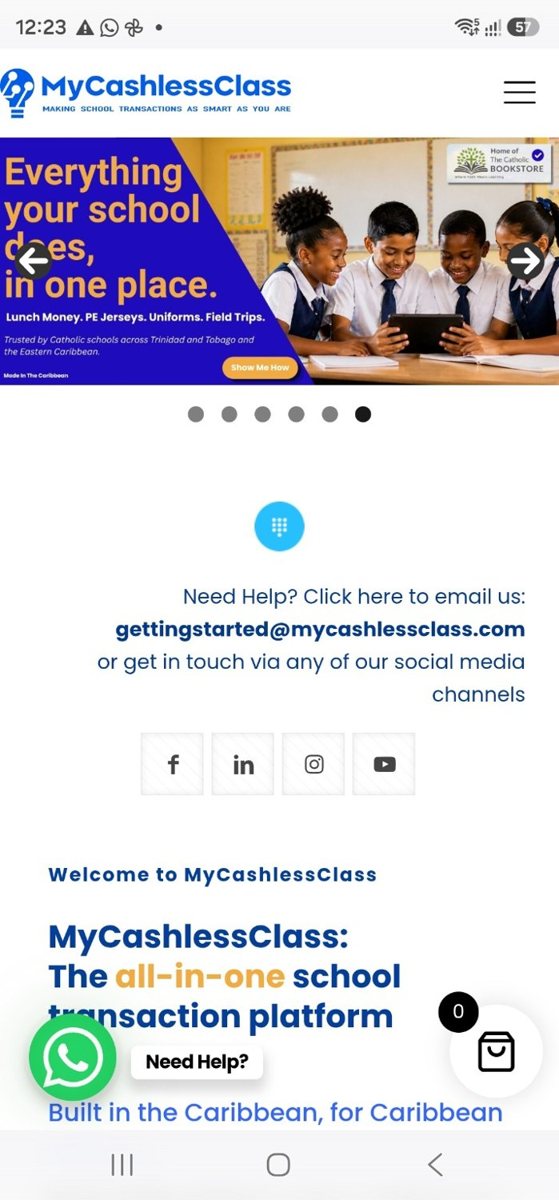
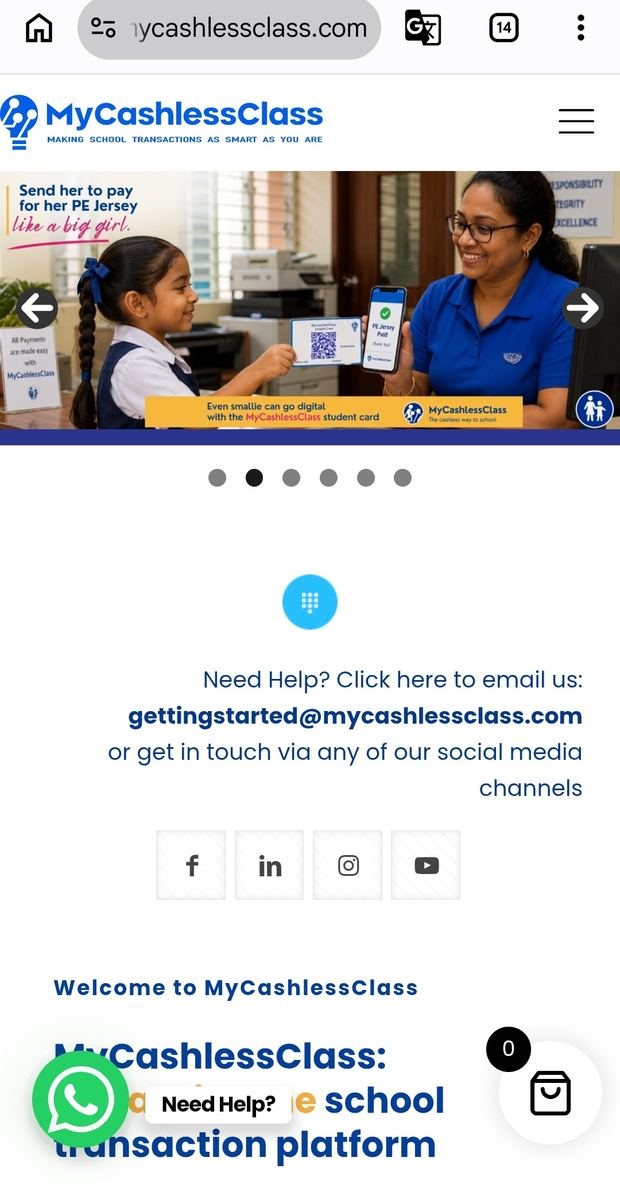
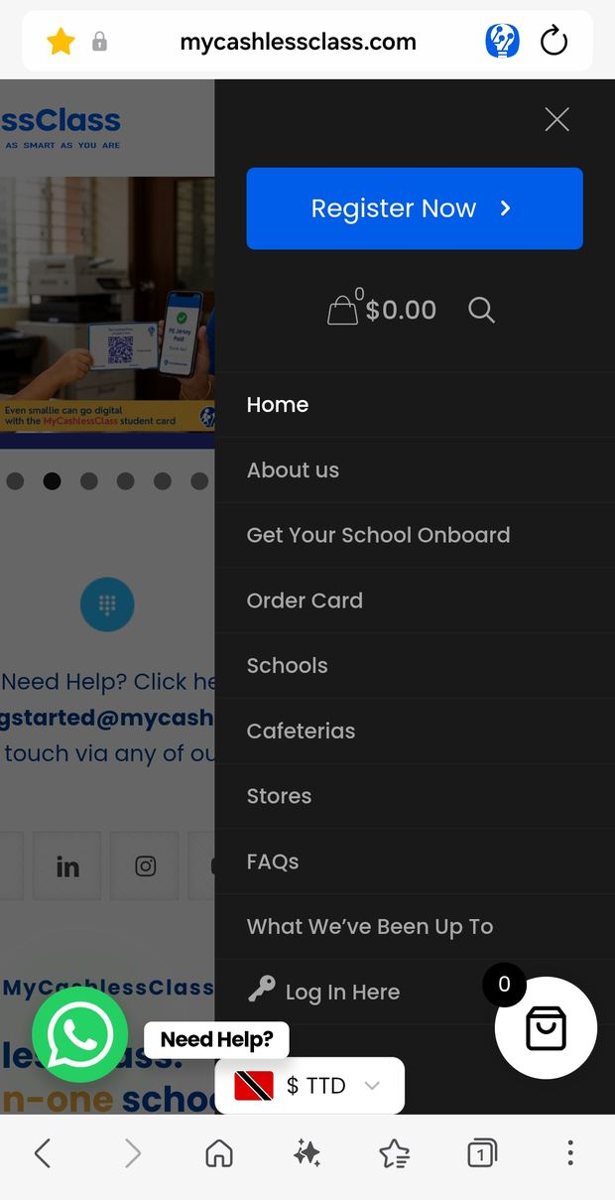
Go to MyCashlessClass.com. On your phone, tap the three lines at the top right.
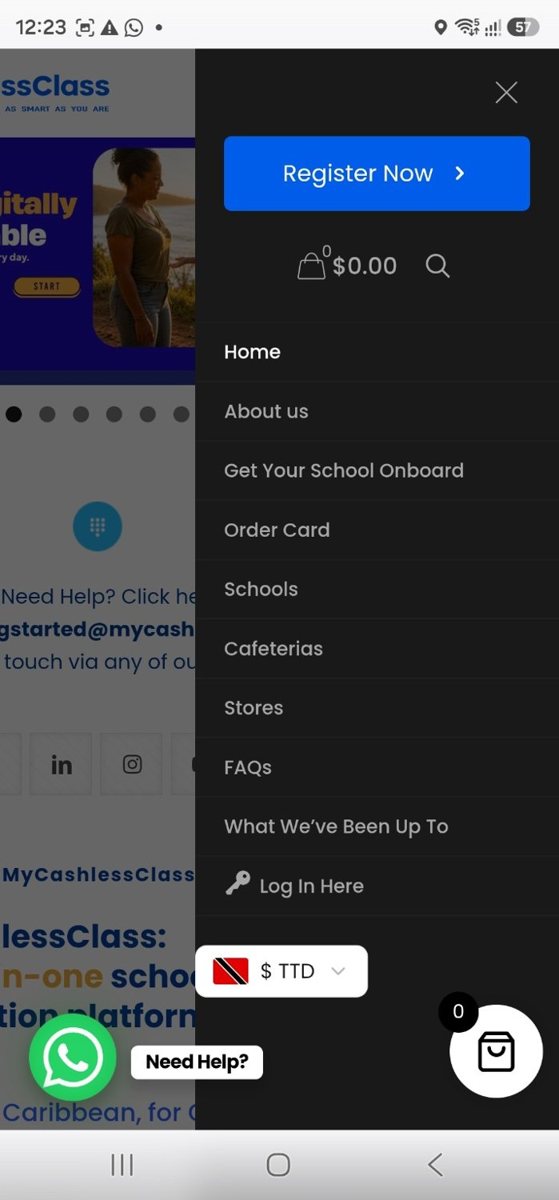
The side menu opens. Tap the big blue Register Now button.
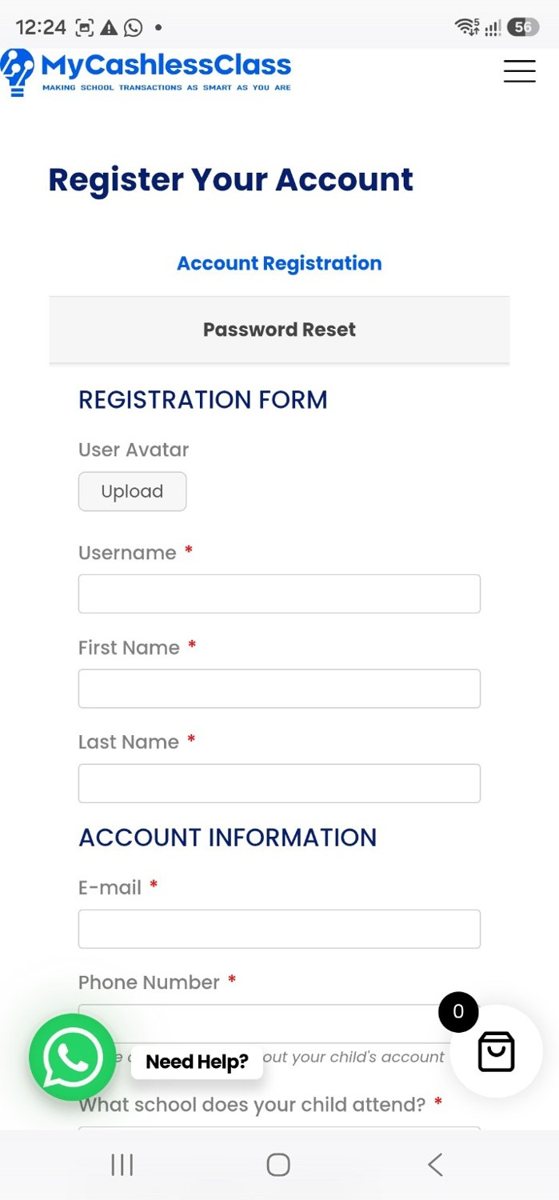
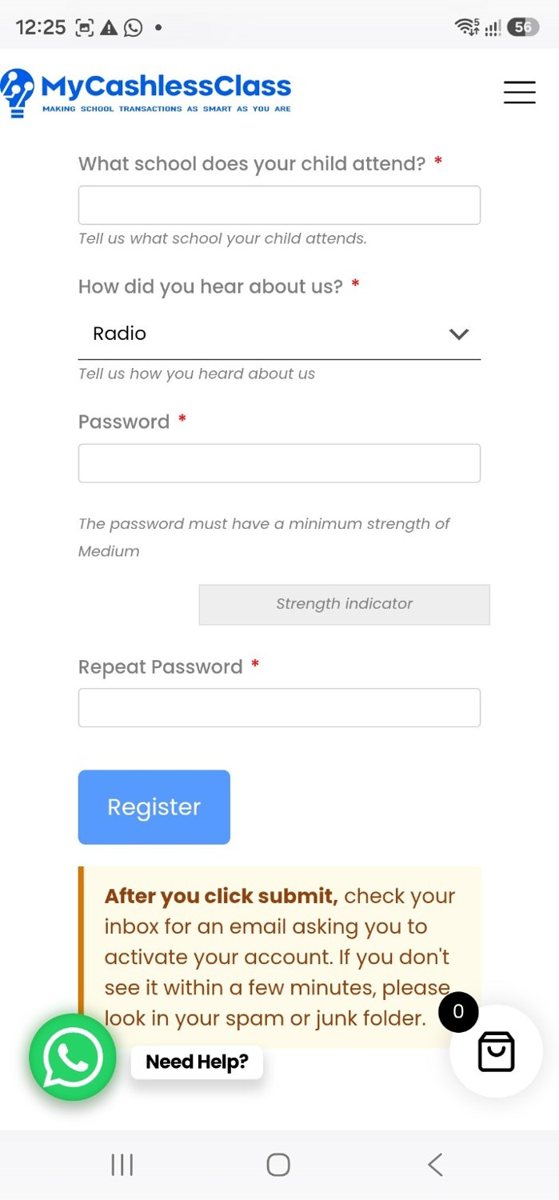
Choose your username and enter your details. Use an email address you check, then complete the school information and the remaining fields.
Your child’s photograph can be added separately. We’ll show you how in the account-photo guide.
Open the activation email from MyCashlessClass and tap its activation link.
[MyCashlessClass] Activate ParentDemo
MyCashlessClass
To activate your user, please click the following link:
MyCashlessClass activation link
After you activate, you will receive another email with your credentials.
Tried to log in before activating?
You may see this message. Open your activation email and tap its link before trying to log in again.
Original on-screen wording, with a fictional username.
Once your account is activated, you’ll receive a second email confirming your MyCashlessClass account.
A new account has been created for you on MyCashlessClass
Welcome to MyCashlessClass!
Your username is: ParentDemo
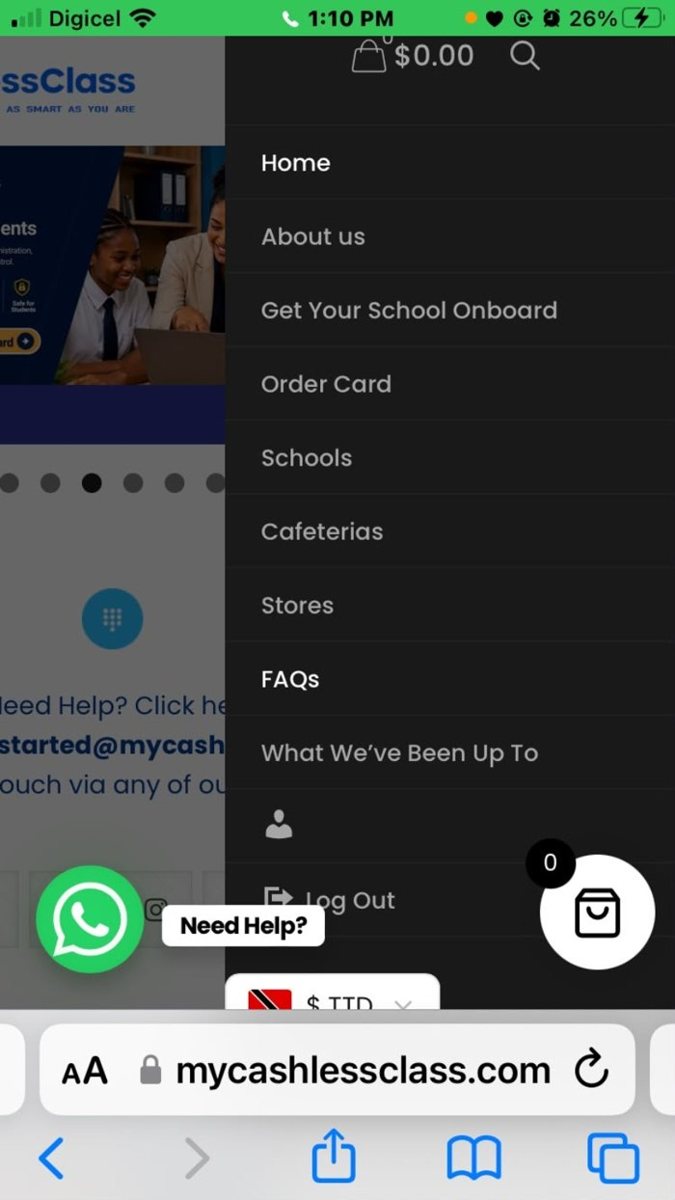
Go back to MyCashlessClass.com and tap the three lines at the top right to open the side menu. Tap Log in Here beside the little key.
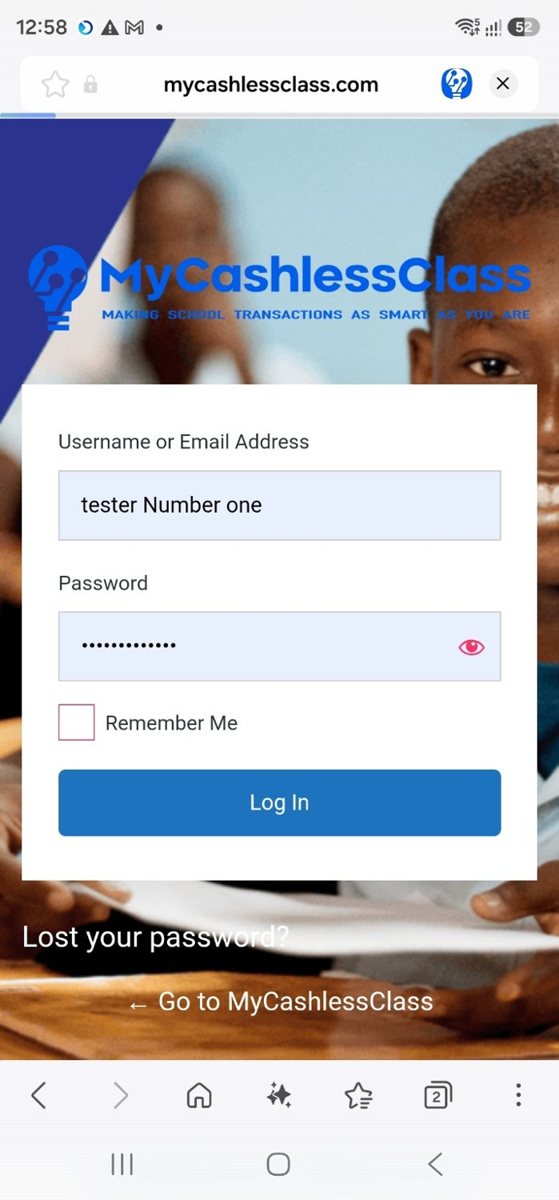
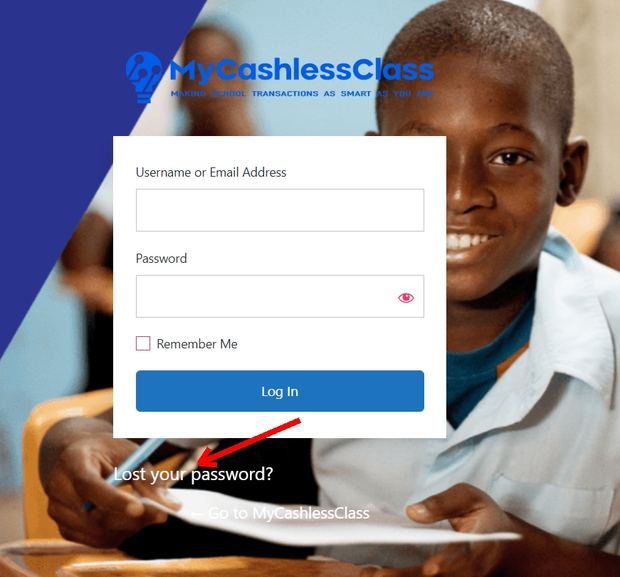
On the login screen, enter your username or email address and the password you chose. Tap Log In.
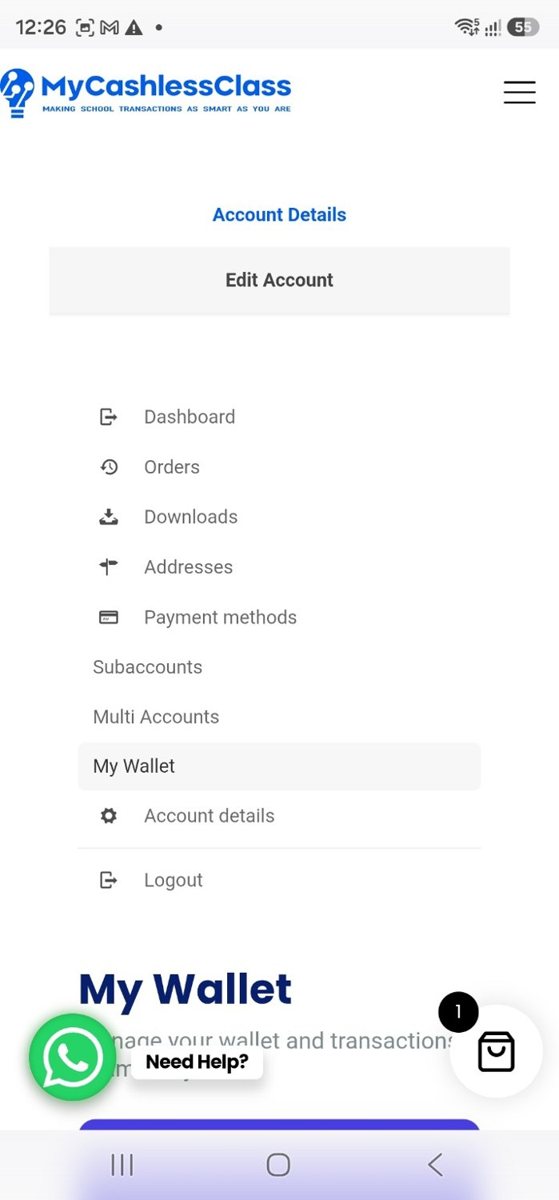
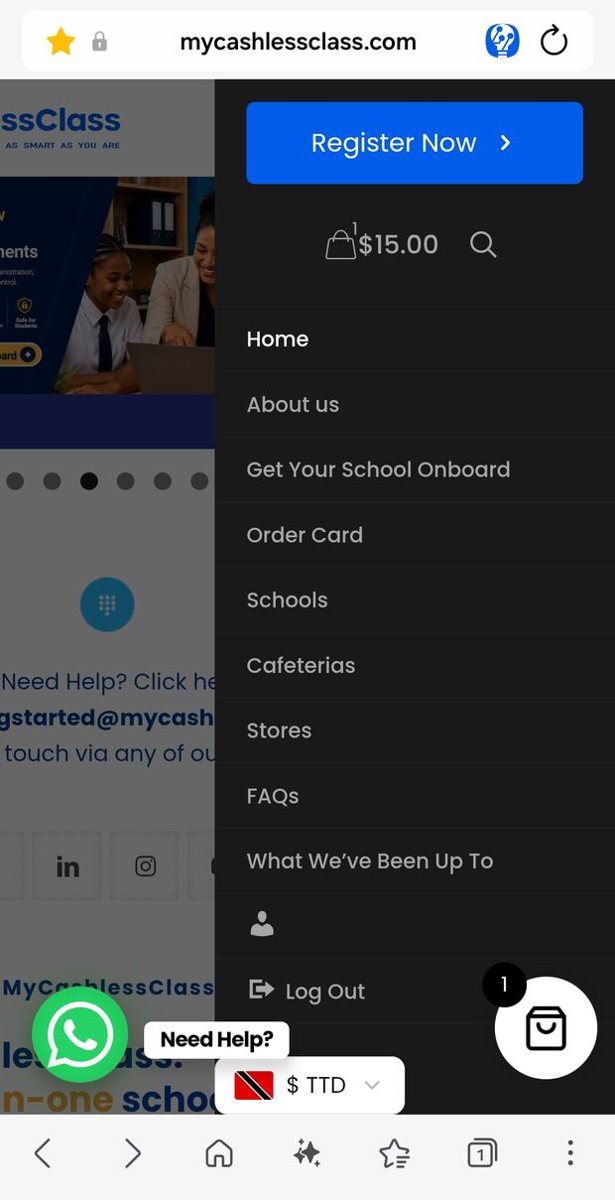
Open the side menu again. The little key has changed to a person icon—you’re logged in. Tap that person icon to open your account page.
02 / YOUR CHILD’S STUDENT CARD
Before you start, register for your free MyCashlessClass account, activate it and log in. Have your registered username and your child’s school and class details ready.
How do I order a MyCashlessClass Student Card?
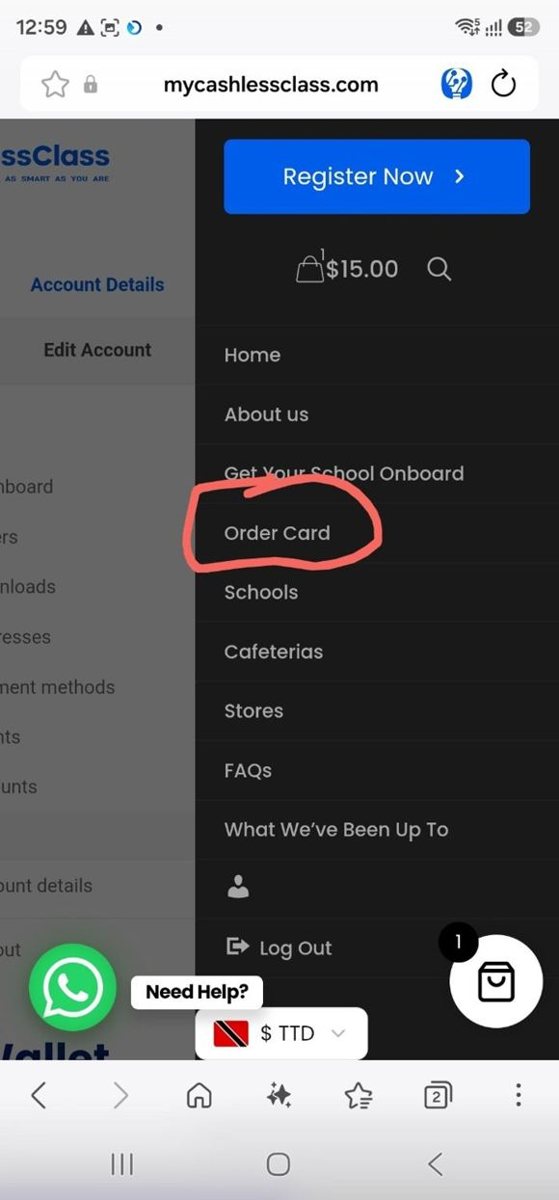
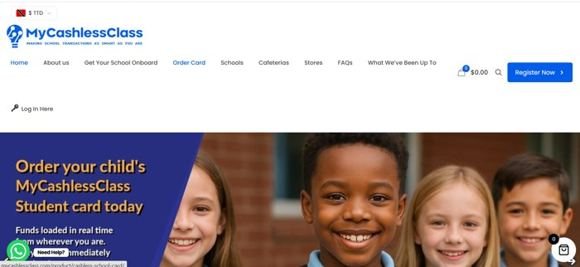
Once logged in, tap the three lines at the top right of MyCashlessClass.com. Tap Order Card in the side menu.
On a computer, use Order Card in the top menu. You can also follow the card-order link in your child’s digital school office.
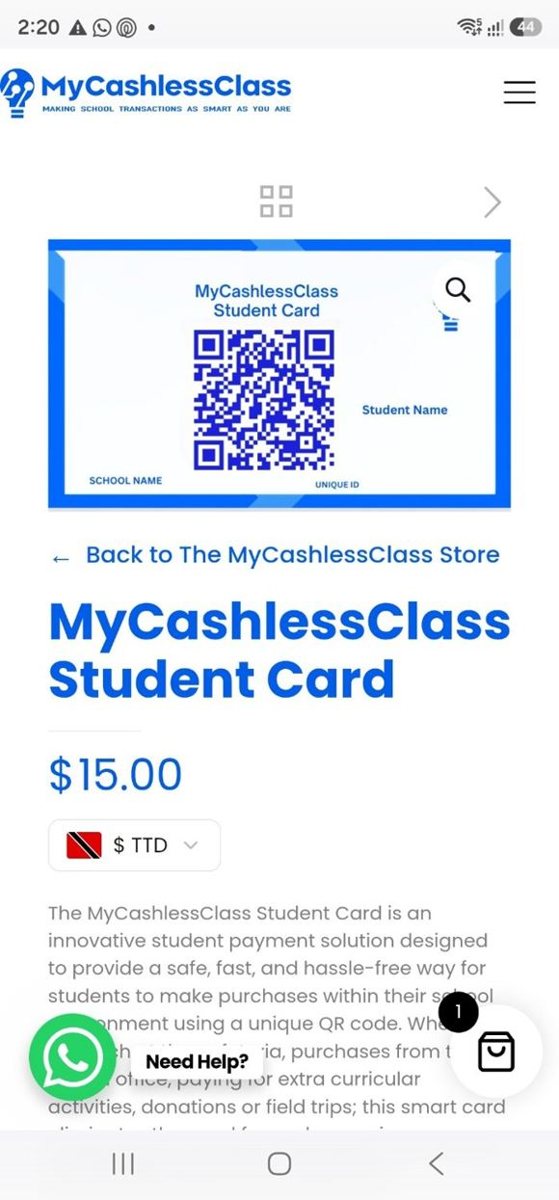
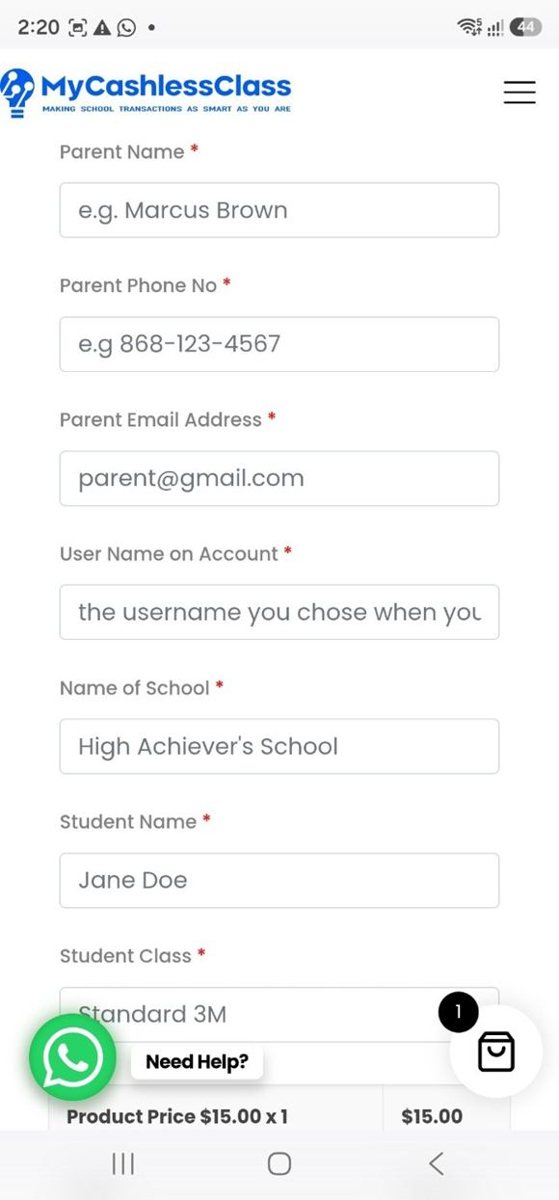
Scroll to the form. Every field marked with a red asterisk (*) is required.
- Parent Name and Parent Phone No: enter your name and contact number.
- Parent Email Address: preferably use the same email address you registered with. Check the spelling carefully.
- User Name on Account: enter the username you chose when you registered.
- Name of School: enter your child’s participating school.
- Student Name and Student Class: enter your child’s name and class carefully.
The filled form uses demonstration details. Enter your own details and your child’s information.
What if I want a child subaccount?
Subaccounts are free and optional. You can create one yourself or ask our Customer Support Team to help. Follow the account-choice guidance on the order page. If you’re unsure how to connect the card to your child’s account, message us before completing the order.
There are no fees to transfer funds from your main account to your child’s subaccount, and there are no fees when your child spends from their digital school account.
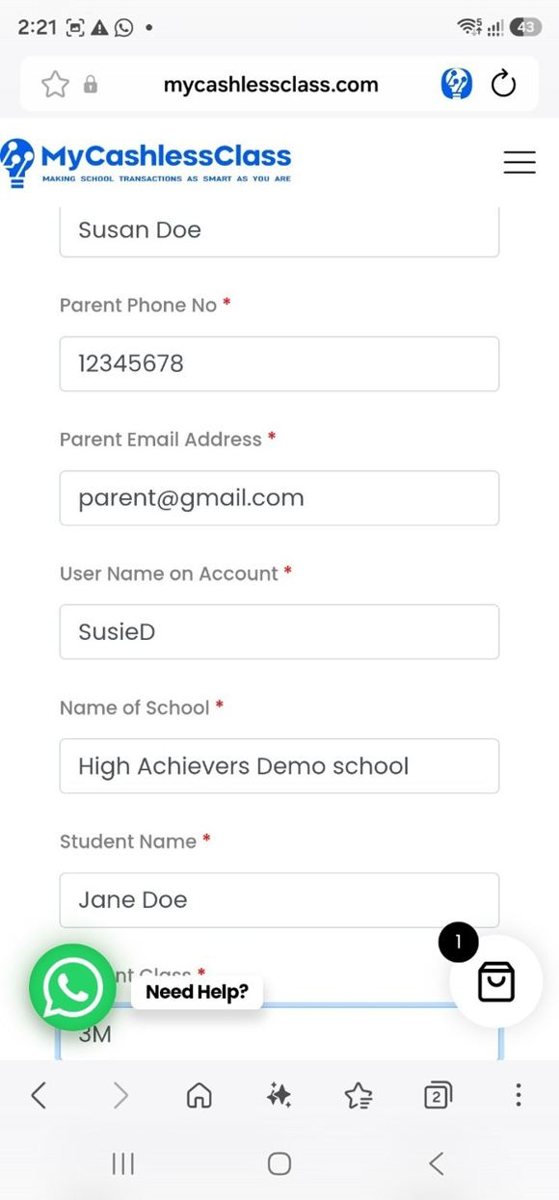
Check your child’s details, scroll to the Add to Cart button and tap it.
Your children can attend different schools, provided each school participates in MyCashlessClass. Enter the correct school and class on each child’s form.
Complete one form for each child. Increasing the quantity of the first card does not enter the next child’s details.
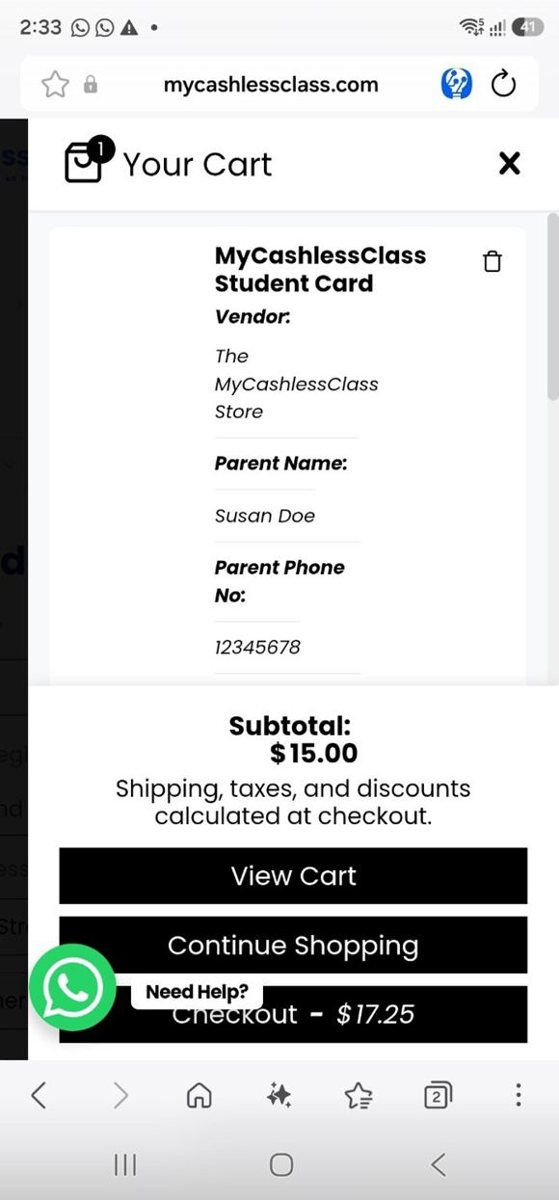
In the cart panel, tap View Cart if you want to check the items first, or Checkout to continue. At checkout, review or complete your billing details.
Scroll to Your order and check each card’s details. Confirm that the names, schools and classes are correct.
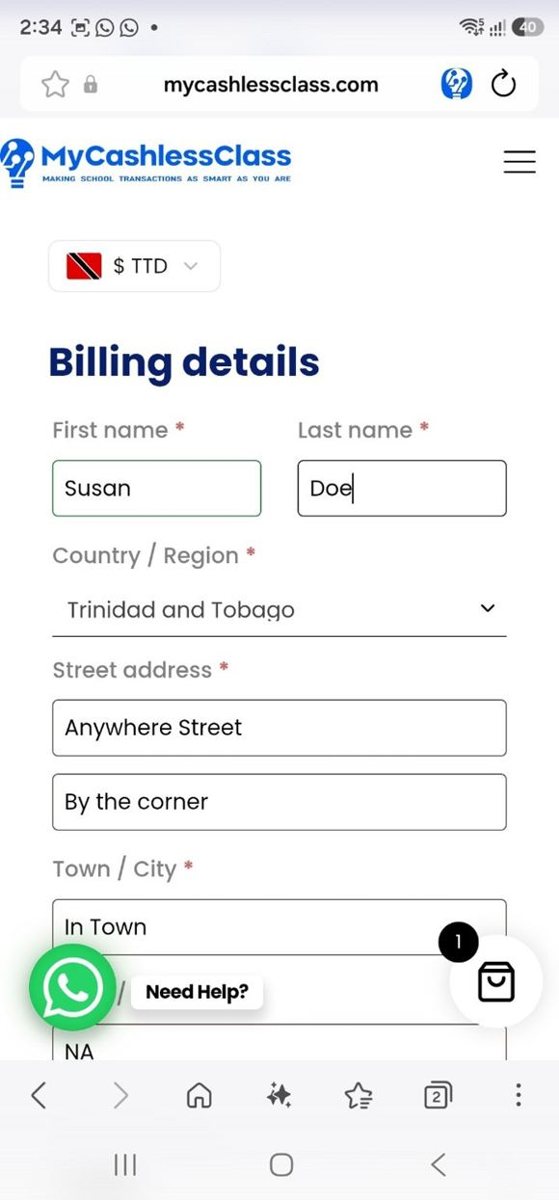
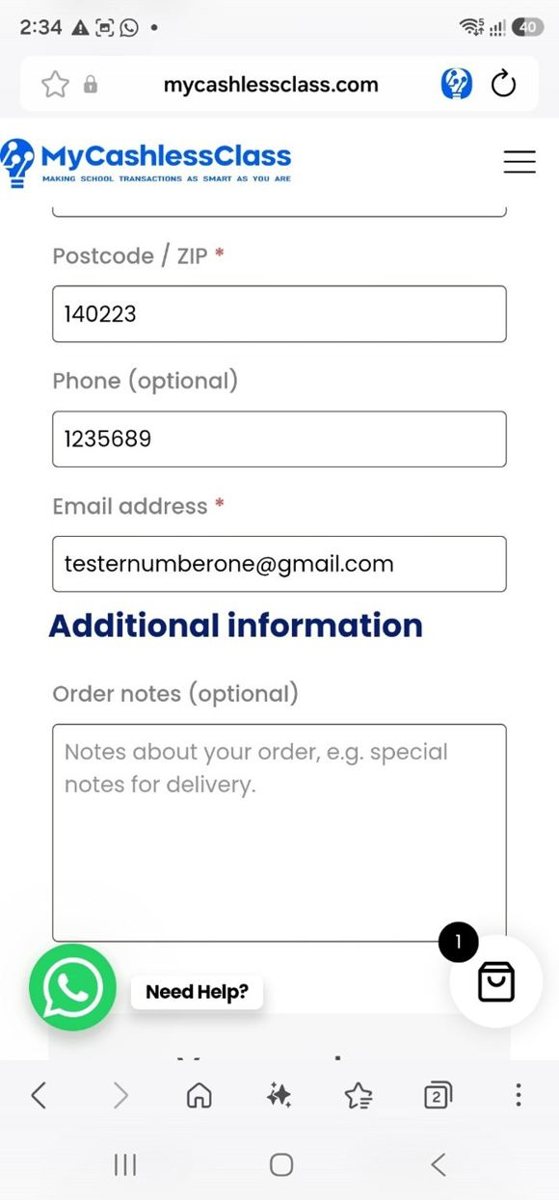
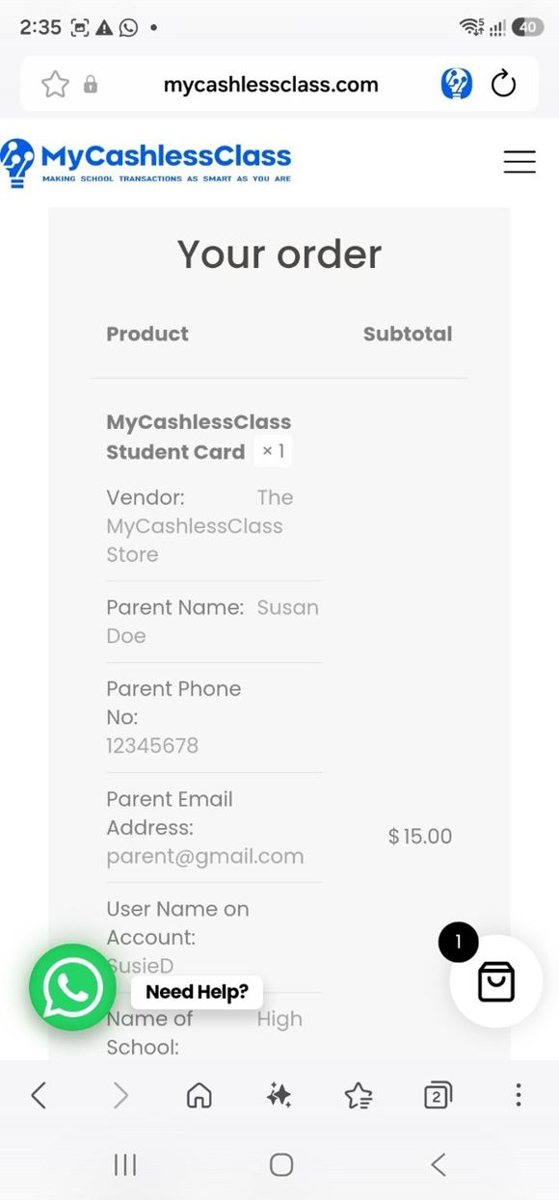
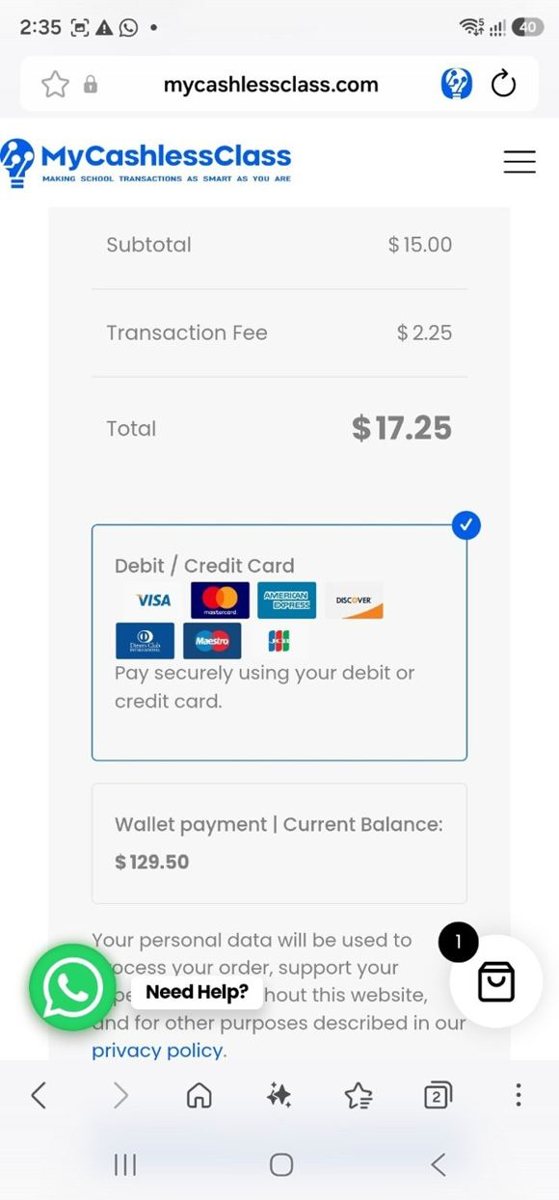
Check the total and choose your payment method. To pay using a bank card, select Debit / Credit Card.
If you already have funds in your digital school account, the checkout also offers Wallet payment. Check the updated total for your chosen method before continuing.
For the single-card debit/credit-card example shown here:
| Item | TT$ |
|---|---|
| MyCashlessClass Student Card | 15.00 |
| Transaction fee | 2.25 |
| Total | 17.25 |
Tap Place order to continue.
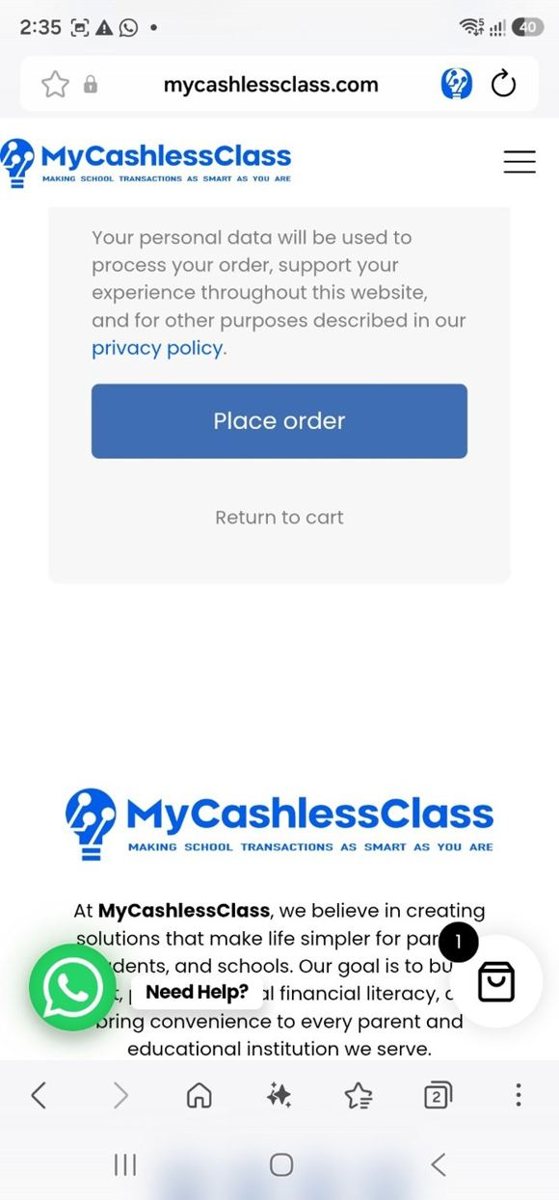
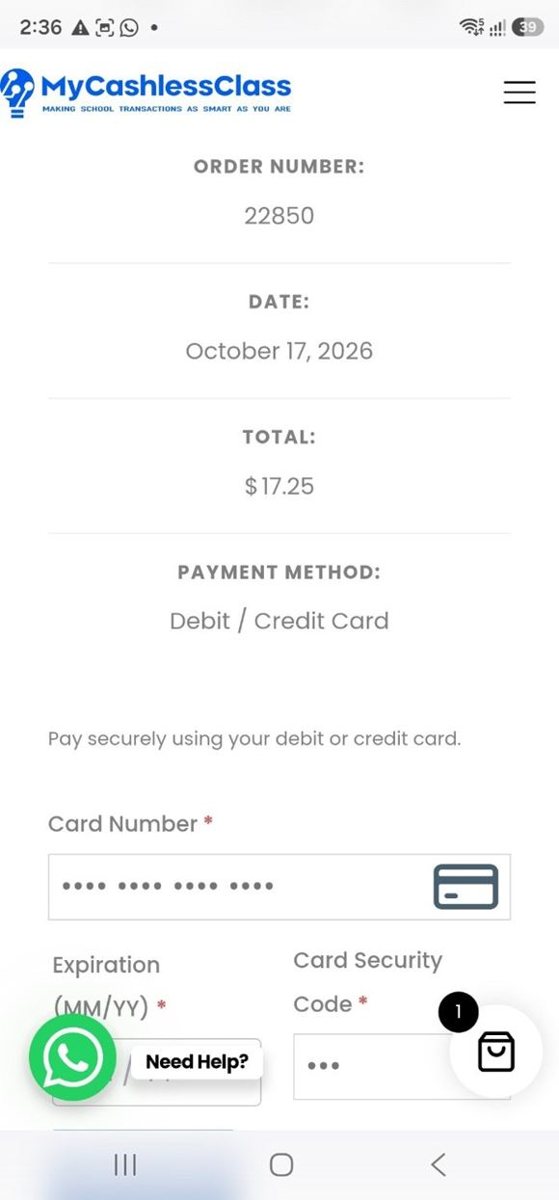
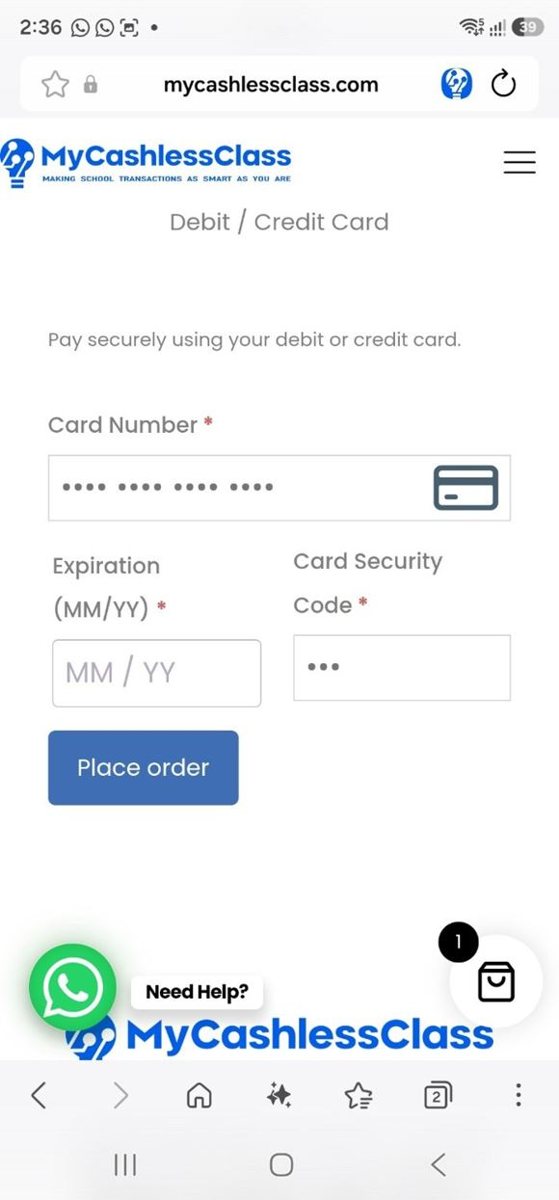
If you selected Debit / Credit Card, the next screen asks for your card details. Scroll down to the payment form.
- Card Number: enter the number printed on your debit or credit card.
- Expiration: enter the card’s expiry month and year.
- Card Security Code: enter the security code printed on your card.
Tap Place order on this payment screen to submit the payment.
If you paid successfully using existing account funds, you won’t need to enter bank-card details.
Wait for the payment result and check your confirmation email. Keep the order number so we can help if you have a question.
Once payment is confirmed, we can prepare your child’s MyCashlessClass Student Card.
What happens after my card order?
Please allow two to three business days for turnaround and delivery to your child’s participating school office during normal school hours. We’ll message you when it has been delivered.
Delivery to your child’s school office is complimentary. During school holidays, we hold cards until school reopens.
Add spending funds to the digital school account connected to the card. If the card uses a child subaccount, top up your main account and use Wallet transfer to send funds to that child.
You will receive an automated email when your child’s MyCashlessClass Student Card enters production. It advises that the card is being prepared for printing and explains what to do next. The guidance reflects whether a child subaccount is already set up.
Generic example — no real parent or child details
From: The MyCashlessClass Team
To: Test Number One <parent@example.com>
Subject: Your MyCashlessClass Student Card for Example Child is in production 🎉
Hello Test Number One,
Thank you for signing up for MyCashlessClass — and well done getting Example Child's sub-account set up already. That is not a small thing to navigate on a first visit, and you clearly did not need much help doing it.
We have received your order for Example Child's MyCashlessClass Student Card and it will be delivered to the school office within two to three business days, already linked to their sub-account.
That means Example Child will only ever have access to whatever amount you choose to send into their account — their own room in the house, so to speak. There are no fees to move funds from the main account to your child's sub-account, no fees when the card is used in school, and the balance never expires.
Nothing here is time-sensitive. These are just the steps that will help you get Example Child ready to use the card at school.
Get funds ready so Example Child can use the card
Remember, you need to be logged in to do this. Log in with the same email and password you registered with. You'll always know you're logged in when you see the key icon change to the little person icon.
You should now be on the Wallet screen — you cannot miss the big purple block with your account balance.
To top up your main account:
- Click Wallet topup.
- Enter the amount you'd like to add. Minimum top-up: $20.
- Click Add Funds.
- Fill in your billing details, then your debit or credit card details, and click Place order.
- You'll get an email confirming the top-up, and the funds are added to your main account balance in real time.
To transfer funds to Example Child's sub-account:
- Click Wallet transfer.
- Enter the email address for Example Child's sub-account — the one you used when you set it up.
- Enter the amount you'd like to send.
- Add a note if you like — “Lunch,” “Snacks,” whatever helps you keep track.
- Click Transfer. The funds move to Example Child's sub-account in real time, ready for them to use at school.
Add a photo, if you have not already
You can also add a photo of Example Child, if you have not already — in fact, we recommend it. It is an extra layer of security so the school office and cafeteria can confirm it is really them using the card.
The photo is visible only when the card is scanned with the app we give to the school office and cafeteria. The card is completely useless outside of the school.
Click the person icon, open Account Details, click on Example Child's sub-account, then Edit Account, and upload under User Avatar.
Having trouble? Send us the photo via WhatsApp and we'll do it for you.
You do not have to transfer a large amount at once. You can send a small amount each day, a weekly amount, or only transfer funds when Example Child needs to spend at school.
If you get lost at any point, click the WhatsApp icon on the screen — or message 741-2665 directly — and one of the MyCashlessClass Support team will guide you through.
If you have any questions or run into any difficulty at all, please do not hesitate to reach out. We love questions!
Be sure to follow us on social media — we always have a lot to say:
Welcome aboard!
The MyCashlessClass Team
customerservice@mycashlessclass.com
|
WhatsApp messages only: 741-2665
|
mycashlessclass.com
The Caribbean's all-in-one school transaction management platform.
Generic example — no real parent or child details
From: The MyCashlessClass Team
To: Test Number One <parent@example.com>
Subject: Welcome to MyCashlessClass! We've received Example Child's Student Card order 🎉
Hello Test Number One,
Thank you for signing up for MyCashlessClass — we are so happy that you've made the decision to bring the convenience of digital school transactions into your life!
We have received your order for Example Child's MyCashlessClass Student Card and it will be delivered to the school office within two to three business days.
Here's the full shape of what's ahead. Only one of these has a clock on it — everything else, you can come back to whenever you're ready.
You can create a sub-account for Example Child, so that you control the amount you choose to send into the sub-account. Think of your main account as the house, and a sub-account as a room in it.
If you'd like the card linked to a sub-account, the best time to set it up is now, before the card is produced — ideally within one day of placing your order. The card's QR code is built around whichever account exists at production time, so a sub-account added afterward would need a new card to match.
If a sub-account isn't for you, there's nothing to do here — the card will work perfectly linked to your main account.
Here's exactly how, if you'd like one:
- Log in at mycashlessclass.com . On a computer or tablet, click the key icon right in the toolbar. On your phone, tap the three lines (☰) to open the side panel, then tap the key icon at the bottom. This same icon becomes a little person once you're logged in — you'll see it throughout, and any time you need to get back to your Dashboard menu, you can click it.
- You will land on the page showing your digital wallet. Look to the left and you will see the Account menu items — that's where you will find Subaccounts. Click it.
- Once you are on the subaccount page, click Add Subaccount.
- Fill in the username, email address, first name, and last name — Company is the only field you can skip. The username and email must both be different from your own account's — a school email address for Example Child works perfectly, if available.
If Example Child doesn't have a separate email address, you can use yours instead —
just make a small change when entering it. Type it as
youremail+1@youremailprovider.com,
and the system will accept it as its own address while the confirmation still lands in your regular inbox.
Got more than one child? Use
+2,
+3,
and so on for each additional sub-account.
- Click Add Subaccount. You do not need to activate anything. Once you see that “Subaccount successfully added” message and see the subaccount appear in the list, it is live and usable. If you want your child to be able to log into the subaccount, send us a message at customerservice@mycashlessclass.com or send a WhatsApp message to 741-2665 right from the screen.
If you get lost at any point, click the WhatsApp icon on the screen — or message 741-2665 directly — and one of the MyCashlessClass Support team will guide you through.
Whenever you're ready — no rush on these
Add a photo. As an extra layer of security so the school office and cafeteria can confirm it's really Example Child using the card, you can upload a picture to the account. It's visible only when the card is scanned with the app we give to the school office and cafeteria — your child's card is completely useless outside of the school.
Once you're logged in, and from your dashboard — remember, you can get there any time by clicking the little person — click on Edit Account. That takes you to the page where you can upload the photo under User Avatar. Having trouble? Send us the photo via WhatsApp and we'll do it for you.
Top up and transfer when you're ready. Need to top up the main account? Easily done. Make sure you're logged into your account, and click Wallet topup — you'll find it under the big purple block showing your account balance.
Once your main digital school account has funds, you can also use Wallet Transfer to move money into your child's sub-account.
If you have any questions or run into any difficulty at all, please do not hesitate to reach out. We love questions!
Be sure to follow us on social media — we always have a lot to say:
Welcome aboard!
The MyCashlessClass Team
customerservice@mycashlessclass.com
|
WhatsApp messages only: 741-2665
|
mycashlessclass.com
The Caribbean's all-in-one school transaction management platform.
03 / THEIR BUDGET. YOUR GUIDANCE.
Think of your main account as the house and a child’s subaccount as a room inside it. Keep funds in your main account, then transfer only what you want your child to access.
Subaccounts are free and optional. Create one yourself or ask the MyCashlessClass Customer Support Team to help.
Use a different username and email address for each child. With a personal Gmail or Outlook.com address, you can add +1 before the @ sign (for example, yourname+1@gmail.com) so messages still reach your usual inbox. For another child use +2, then +3. Work or school email accounts may have different support for plus addressing.
There are no fees to transfer funds from your main account to your child’s subaccount, and there are no fees when your child spends from their digital school account.
How do I create my child’s subaccount?
Go to mycashlessclass.com and tap the three lines at the top right to open the menu. Tap Log In Here near the bottom of the menu. Enter the username or email address and password you registered with, then tap Log In. If you are already logged in, continue to Step 2. Seeing Log Out in the menu means you are already signed in.
The account menu is above your digital school account balance; scroll up if needed and tap Subaccounts.
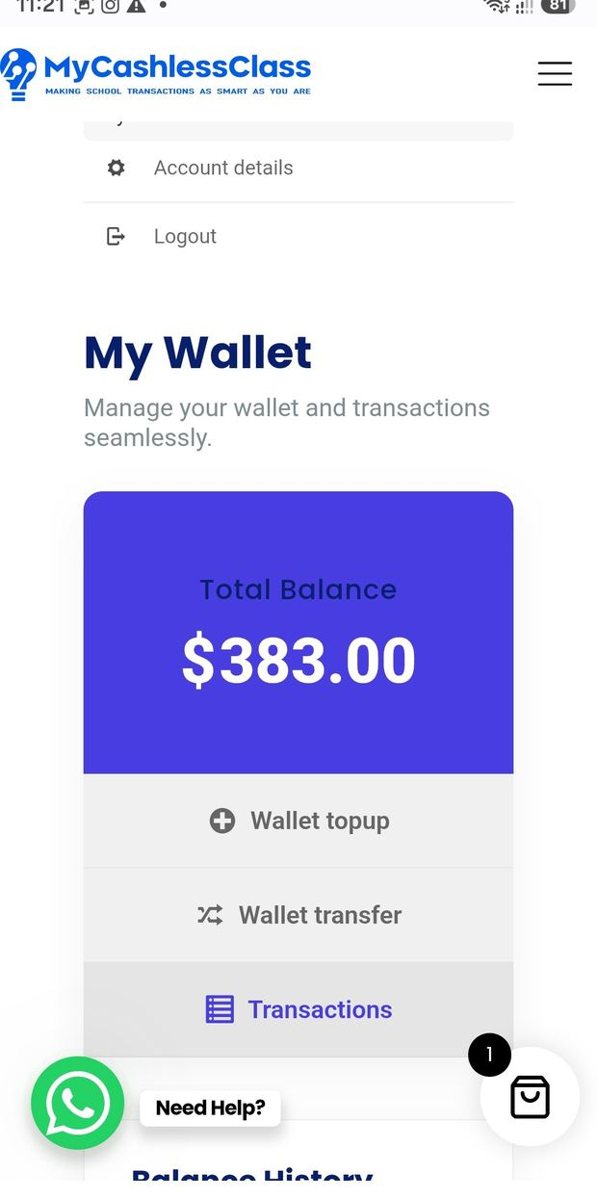
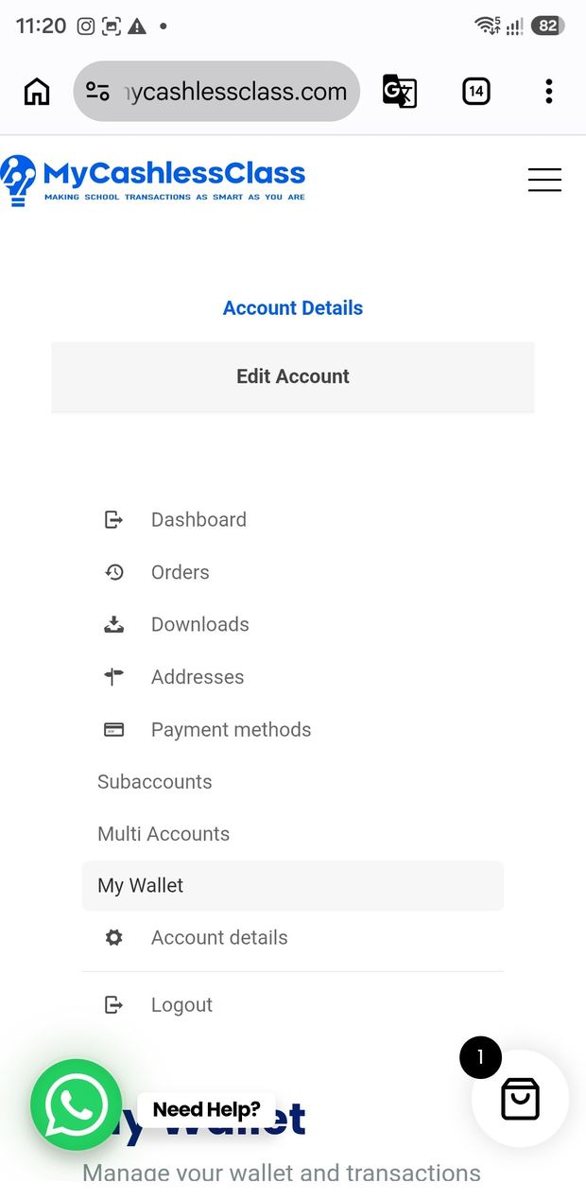
In Manage Subaccounts, tap the blue + Add Subaccount button.
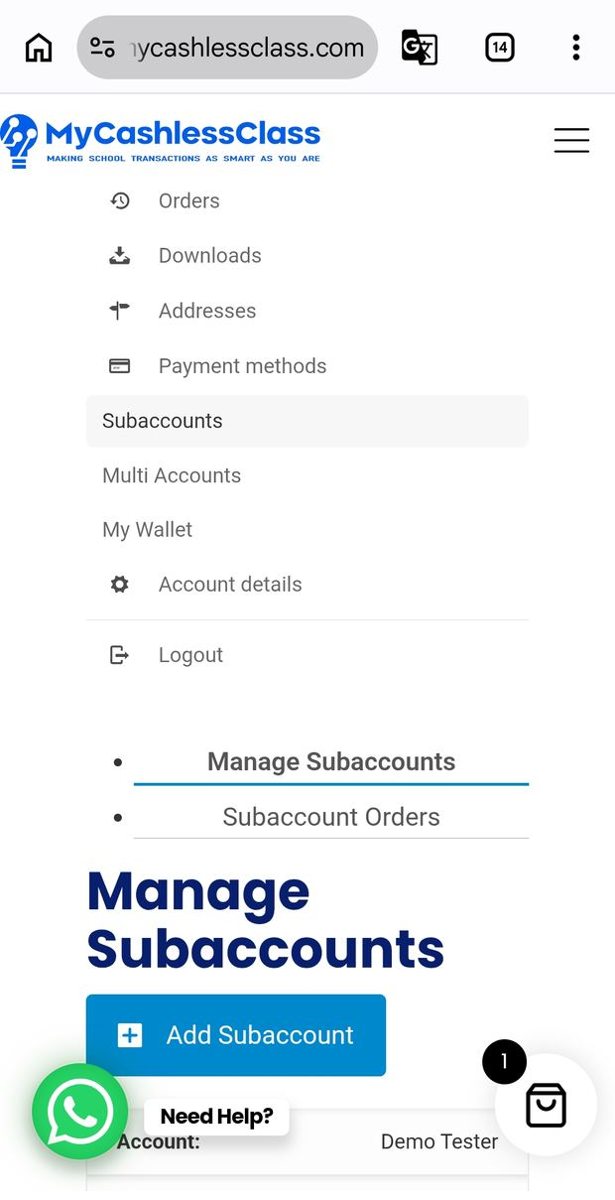
Complete the form for the child whose account you are creating.
- Username: choose a different username from your main account and any other child’s account.
- Email: use a different email address from your main account and other subaccounts, or a +1 / +2 email variation as explained above. Use an address whose inbox you can access.
- First Name / Last Name: enter your child’s name carefully.
One child, one subaccount. Create a separate subaccount for each child, with their own username and email address.
Check the details, then tap Add Subaccount at the bottom of the form.
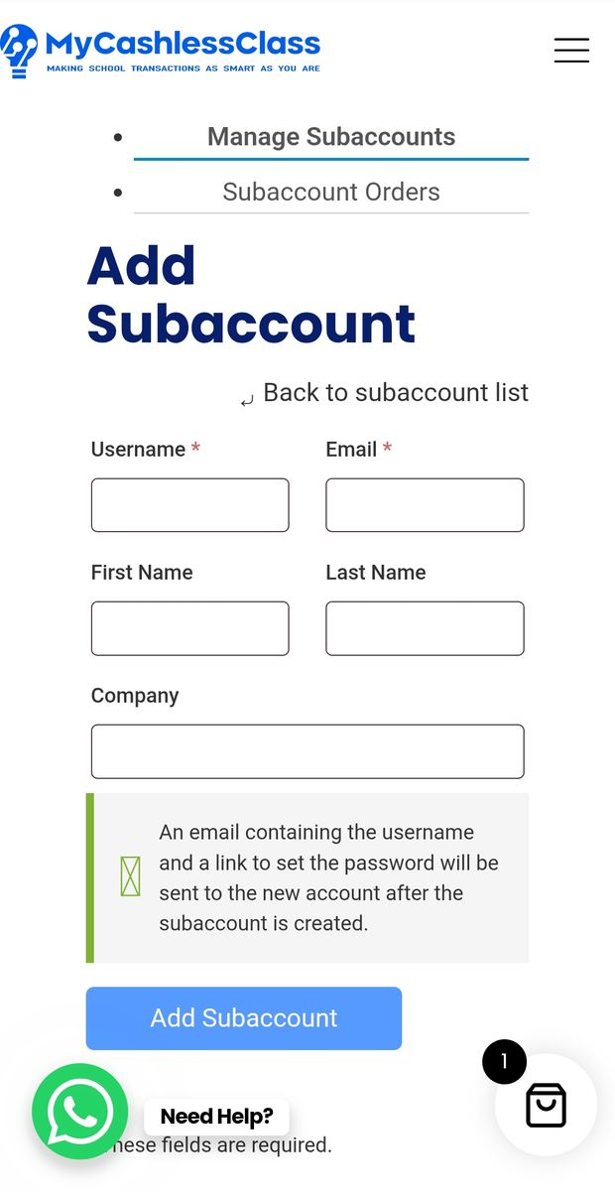
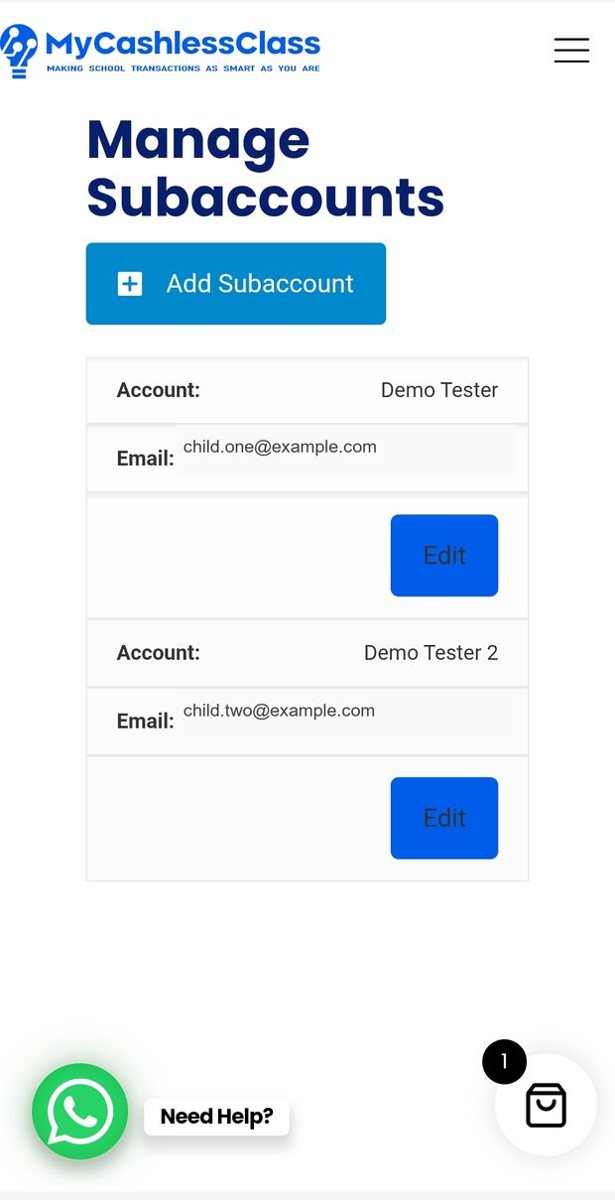
Your child’s account should now appear in Manage Subaccounts. Check the name and email address. Use Edit if you need to correct the details.
The form advises that an email with the username and a password-setting link will be sent to the new account’s email address. Check that inbox and follow the instructions to set its password.
If the message is missing, check junk or spam and confirm that the email address in the account list is correct. Contact us if you need help.
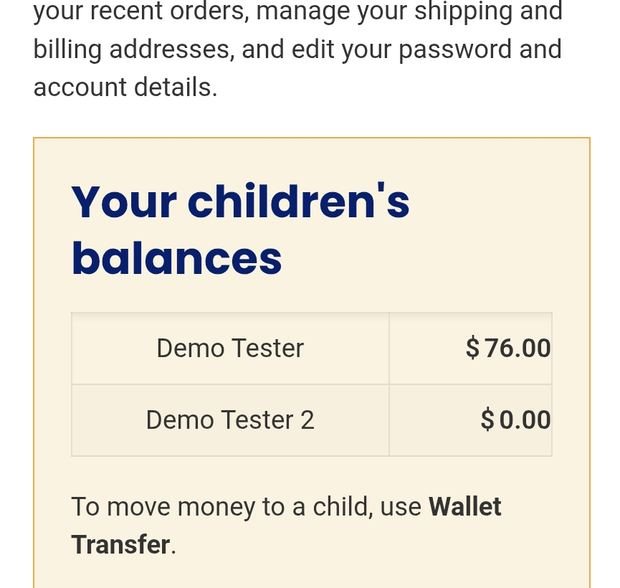
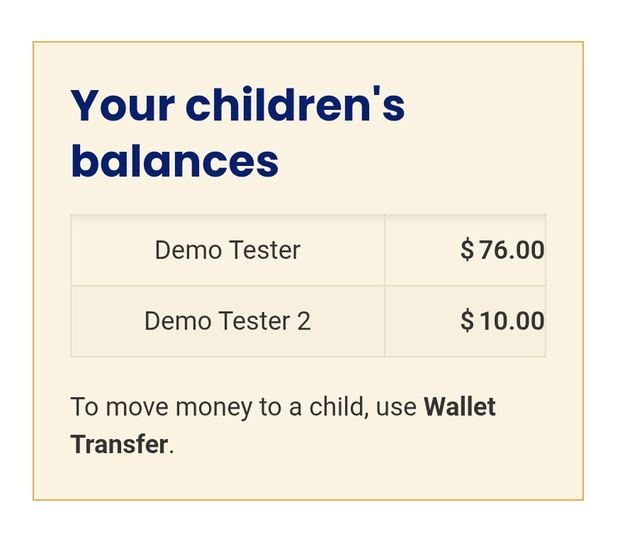
Once the subaccount is created, you can see your children’s balances from your main account. A new child’s account may show TT$0 until you transfer funds to it.
To give your child spending funds, top up your main digital school account if needed, then use Wallet transfer to send funds to the child’s account. Continue below: transfer funds to your child.
04 / GET SPENDING FUNDS READY
A top-up adds new funds using a debit or credit card. The minimum top-up is TT$20. Check the transaction fee shown at checkout.
How do I top up my digital school account?
Top-ups are priced just like buying a phone card: you choose the amount of spending funds, and pay that amount plus the charge shown below.
| Put on the card (TT$) | Charge (TT$) | Total you pay (TT$) |
|---|---|---|
| 20.00 | 3.00 | 23.00 |
| 30.00 | 4.50 | 34.50 |
| 40.00 | 6.00 | 46.00 |
| 50.00 | 7.50 | 57.50 |
| 60.00 | 7.20 | 67.20 |
| 70.00 | 8.40 | 78.40 |
| 80.00 | 9.60 | 89.60 |
| 90.00 | 10.80 | 100.80 |
| 100.00 | 10.00 | 110.00 |
| 200.00 | 20.00 | 220.00 |
| 300.00 | 30.00 | 330.00 |
The amount in the first column is added to your digital school account. The charge is separate and is not part of your spending balance.
Your money never expires. Once it is in your digital school account, spending it at school costs nothing extra.
Log in to your MyCashlessClass account. If your digital school account is not already open, select My Wallet from your account menu.
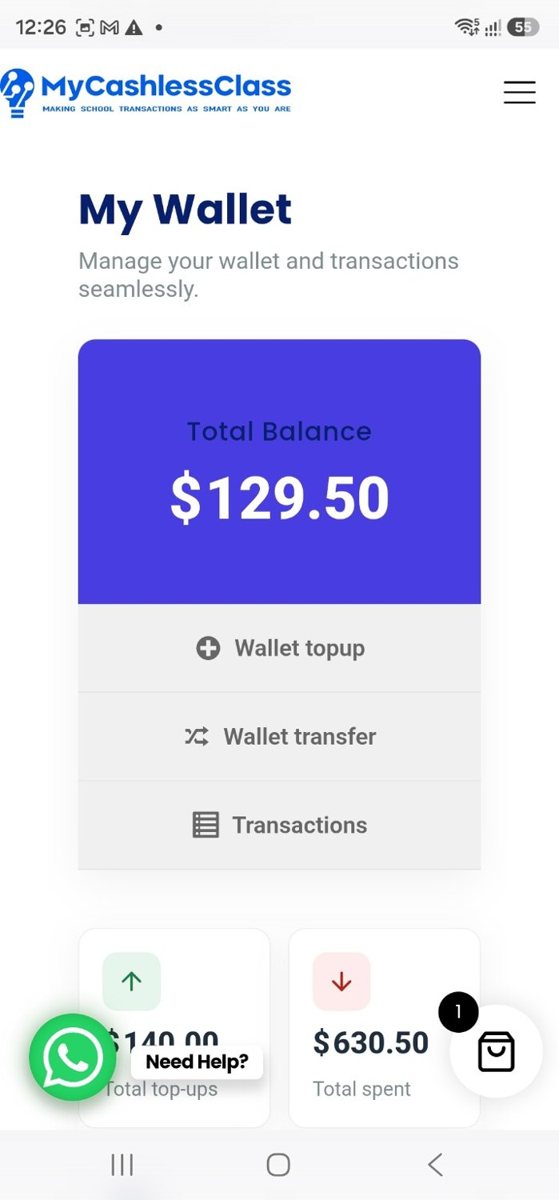
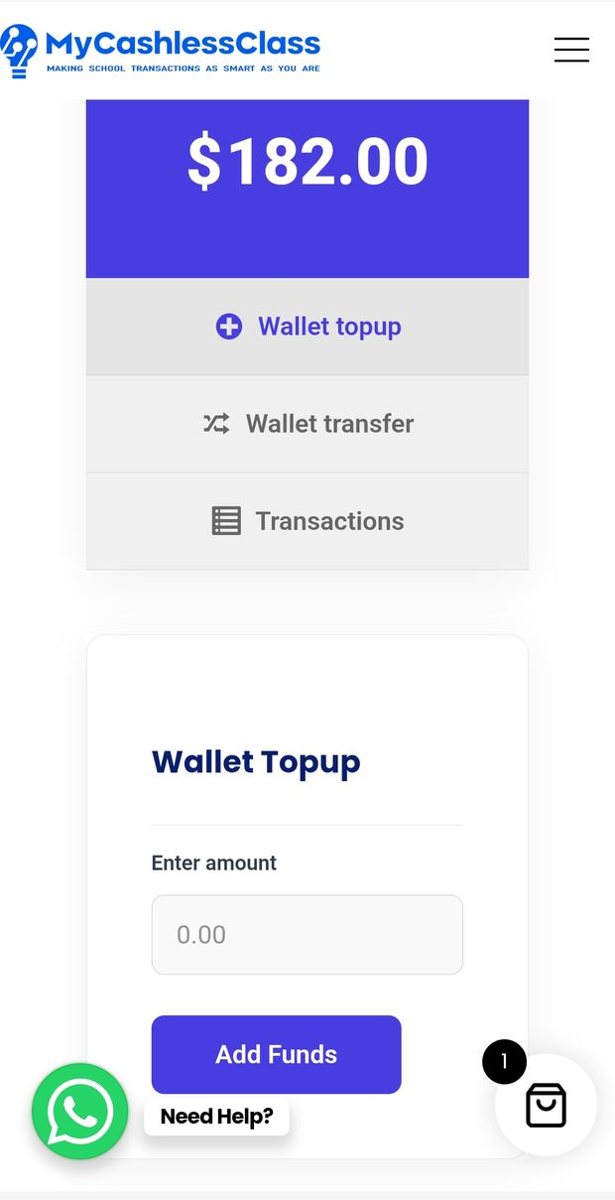
Your current balance appears at the top of My Wallet. Tap Wallet topup beneath it.
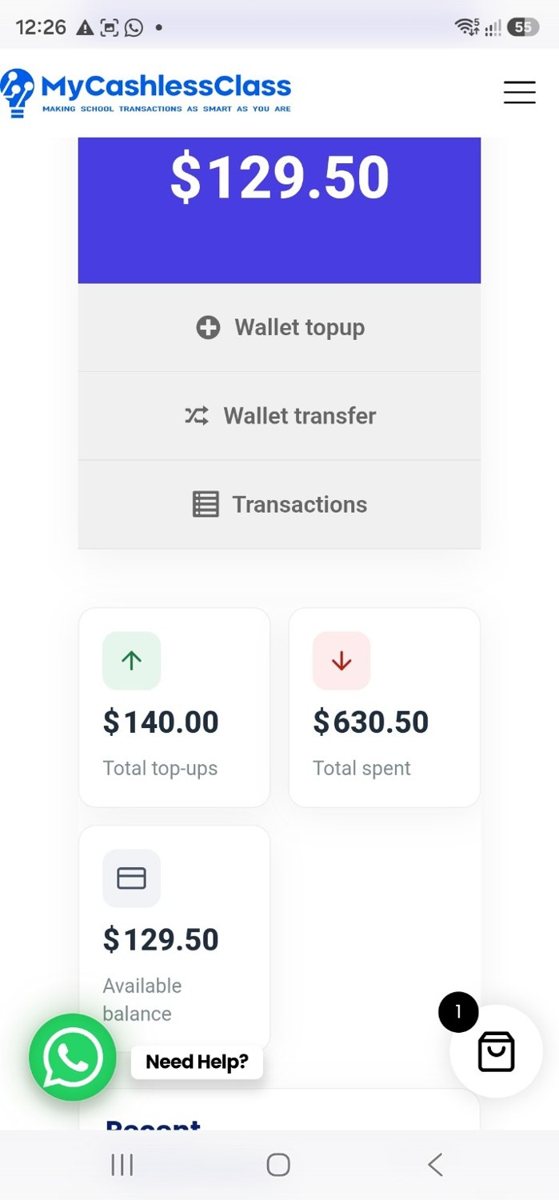
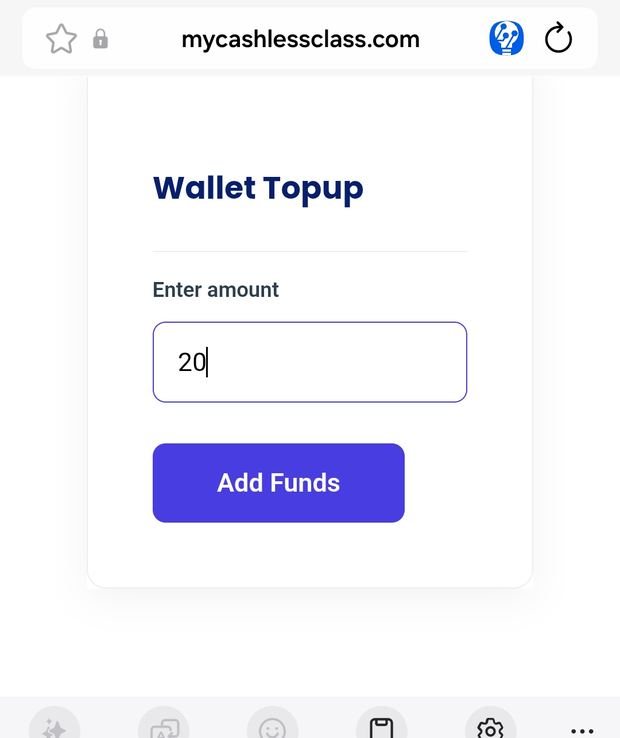
Enter your top-up amount, then tap Add Funds.
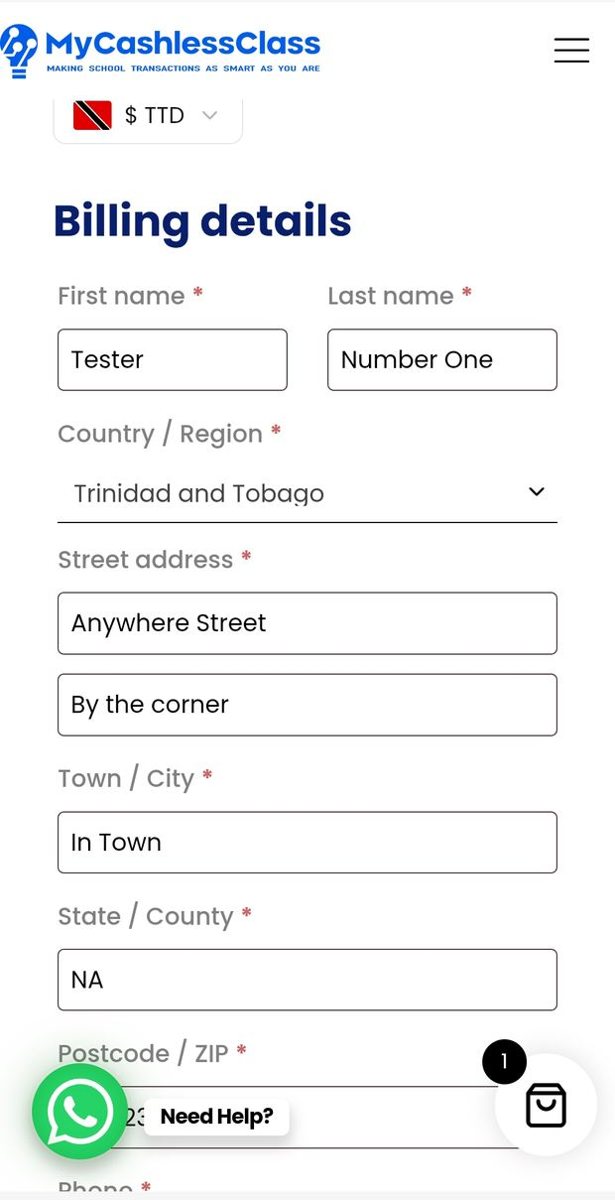
At checkout, enter or check your billing details. Complete the required fields and scroll down to your order summary.
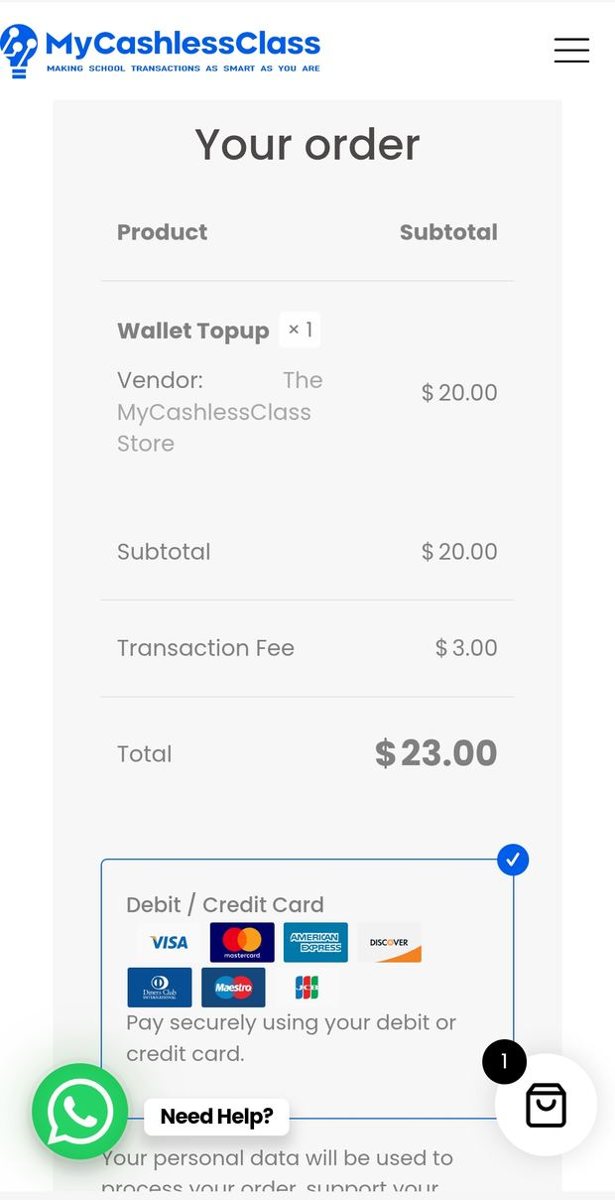
Check the Wallet Topup amount, the Transaction Fee and the Total before paying.
Select Debit / Credit Card, then tap Place order to continue to the payment screen.
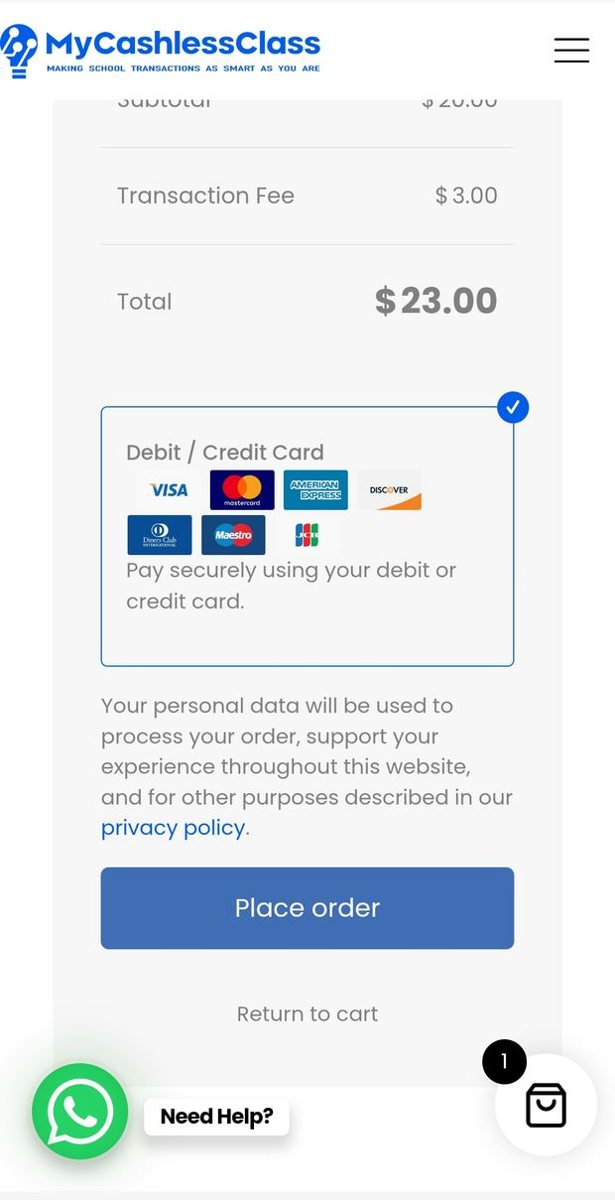
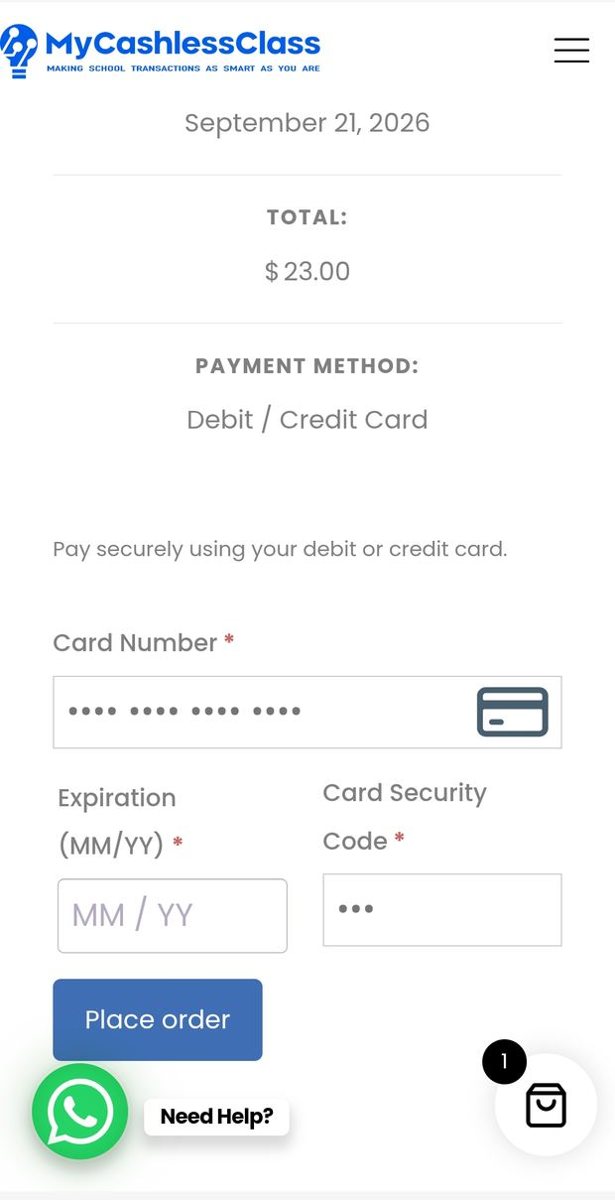
Enter your Card Number, Expiration month and year, and Card Security Code. Tap Place order on the payment form to submit your payment.
If your bank requests verification, follow its instructions to complete the payment.
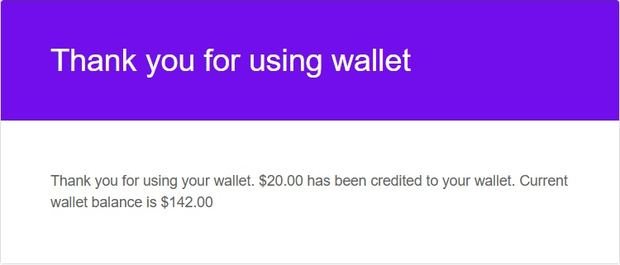
Wait for the payment result. Once the top-up succeeds, your digital school account balance will include the amount you added. Your wallet notification confirms the credit and the new balance.
05 / SEND FUNDS TO YOUR CHILD
A transfer moves funds already in your main digital school account to your child’s linked subaccount.
How do I transfer funds to my child?
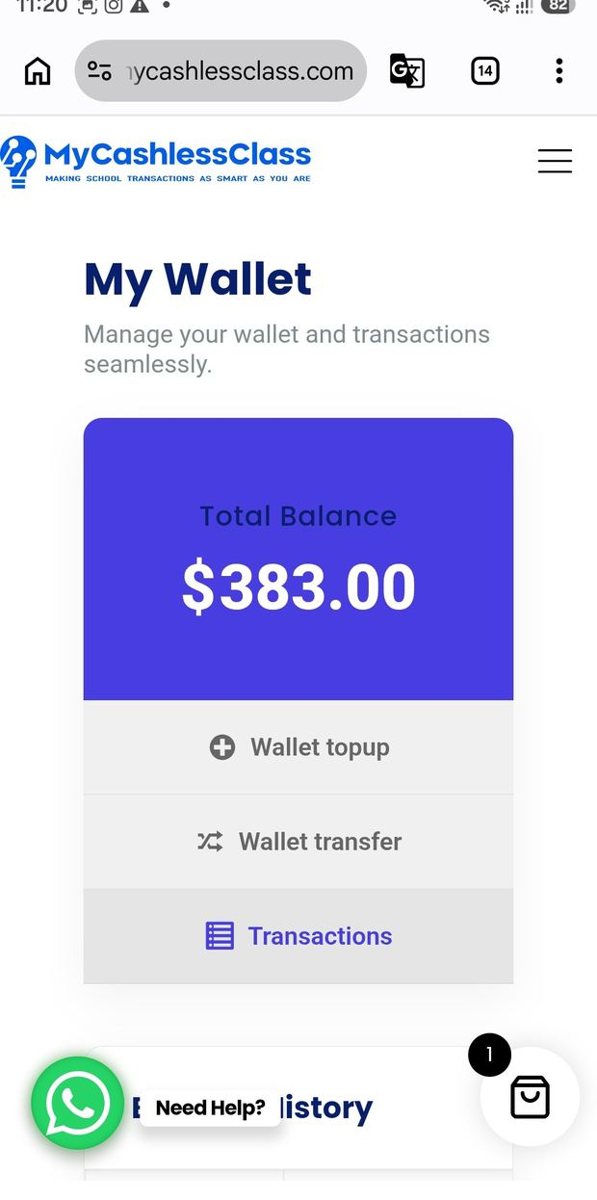
Log in to your main account and open My Wallet. Check the balance you have available, then tap Wallet transfer.
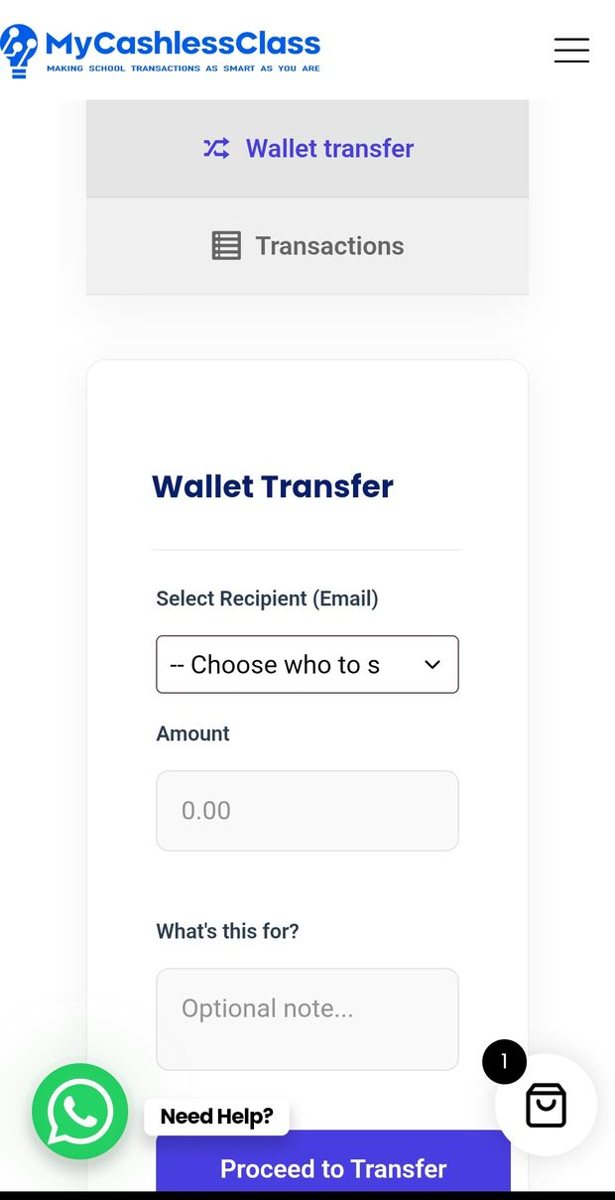
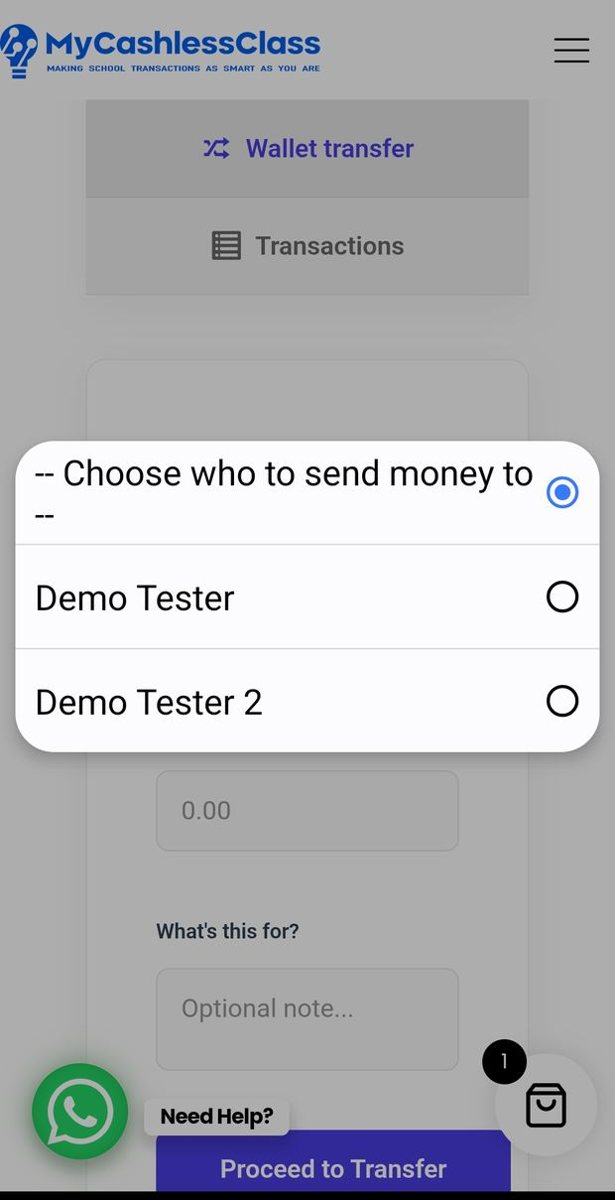
Tap Select Recipient (Email) and choose the child’s account that should receive the funds. Check the recipient carefully before continuing.
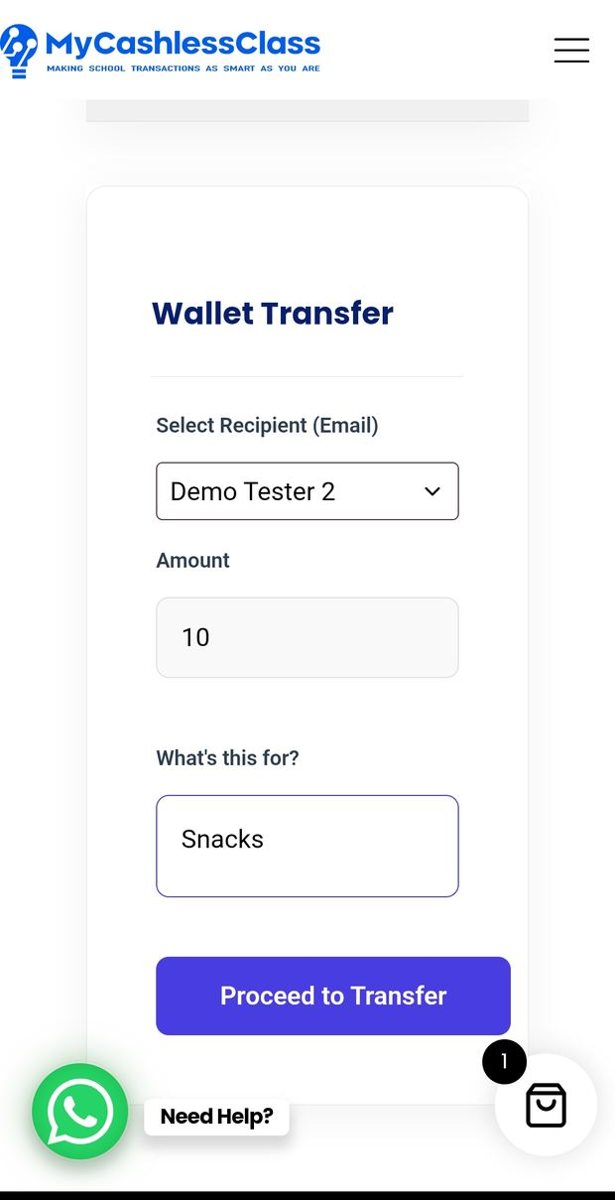
Enter the amount you want to send from your existing digital school account funds. You can add an optional note under What’s this for?—for example, “Snacks”.
Check the recipient and amount, then tap Proceed to Transfer.
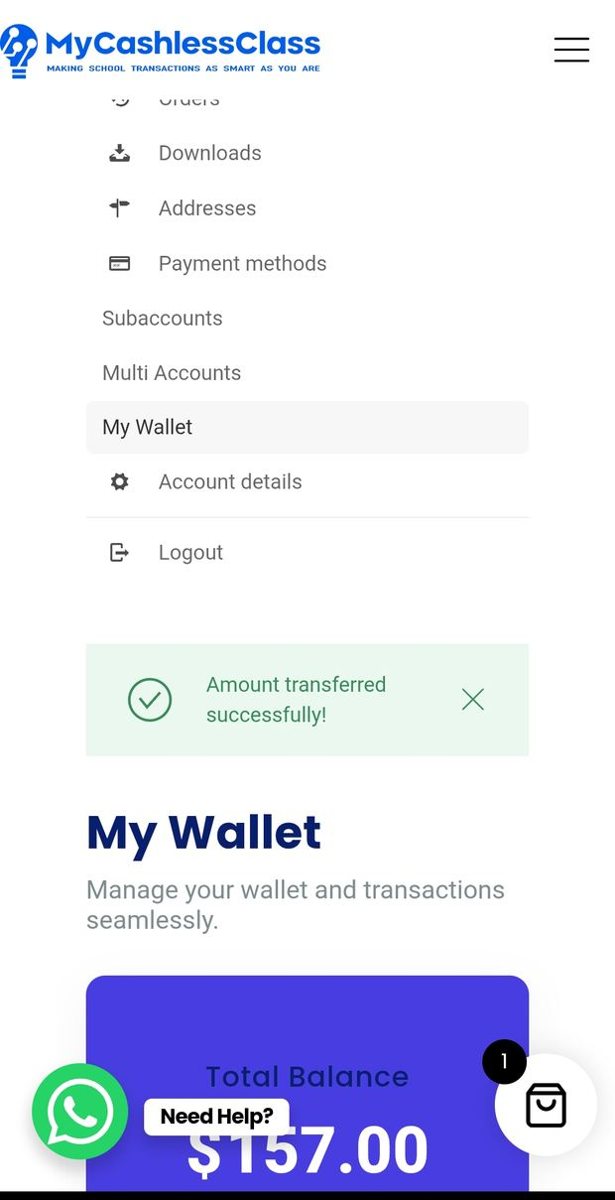
Wait for Amount transferred successfully! before treating the transfer as complete.
If you do not see a success confirmation or are unsure what happened, check the balances before trying again.
Open Subaccounts to see Your children’s balances. Check the balance beside the child’s account you selected.
The funds are now available in that child’s account for spending with the student card linked to it.
06 / STAY INFORMED
What email notifications will I receive?
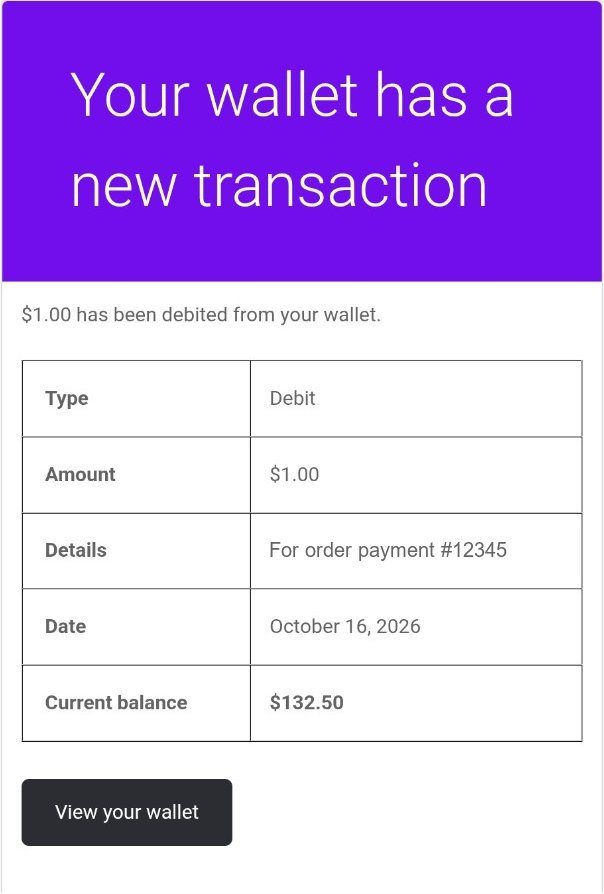
When your child’s MyCashlessClass Student Card is scanned for a purchase in the school office or cafeteria, you will receive a transaction notification in the email inbox used when registering the account.
The message shows the amount spent, transaction details and the digital school account’s current balance.
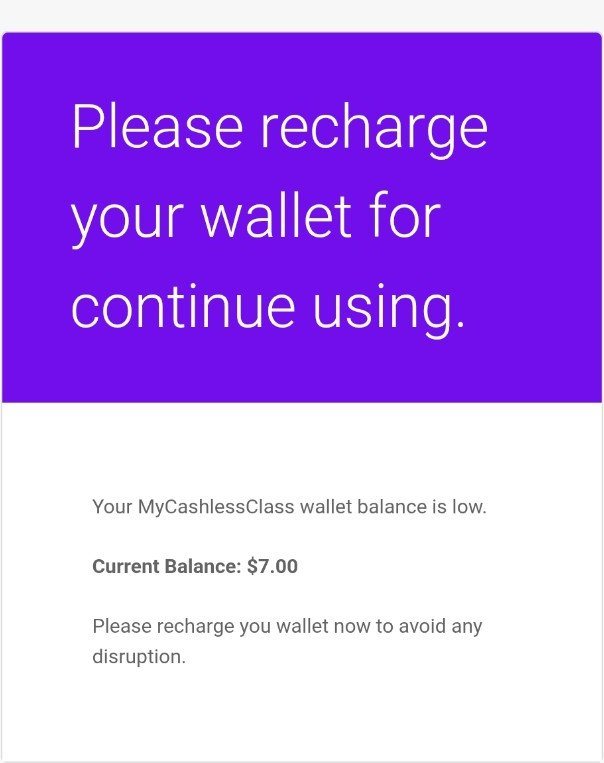
Yes. You will also receive an automated email advising you when your digital school account balance is running low.
Top up the relevant wallet or, if your child uses a subaccount, top up the main digital school account and transfer spending funds to the child’s account.
Go to wallet top-up → · Go to wallet transfer →
A little help, if you need it
Check which account received the top-up. If the funds are in your main digital school account and the card is linked to your child’s subaccount, use Wallet transfer to send funds to that child.
Check that you are logged in to the main account where the child’s subaccount was created. If you are still unsure, message the MyCashlessClass Customer Support Team.
Check the payment result, your digital school account balance and your confirmation message before trying again. If the result is unclear, contact the MyCashlessClass Customer Support Team so we can help you check.
Stuck? We’re right here.
No question is too small. Message the MyCashlessClass Customer Support Team and we’ll help you through it.
Message us on WhatsApp (messages only)
customerservice@mycashlessclass.com